
Wisp Science高级:ACP配置
查看原文如果你已经在使用 Codex、Claude 等外部 Agent,希望在 Wisp Science 的项目界面里继续使用它们,可以通过 ACP 接入。Wisp 负责项目界面、消息和权限交互,外部 Agent 负责自己的会话、工具与认证。
这篇教程从准备本机适配器开始,介绍配置、测试和第一次对话。普通 API 模型的配置见模型配置教程。
先区分 HTTP 模型与 ACP Agent。
| 方式 | 配置入口 | 执行任务的 Agent |
|---|---|---|
| HTTP 模型 | 设置 → 模型 → Models → 添加 API 接入 | Wisp 内置 Agent,通过 API 调用模型 |
| ACP Agent | 设置 → 模型 → ACP Agents → 添加 ACP Agent | 本机启动的外部 Agent 进程 |
ACP 是 Agent Client Protocol。Wisp 通过本地标准输入输出连接支持 ACP v1 的进程。这里填写的是启动适配器的命令,不是模型 API 地址。
不要把普通 codex、claude 或 claude -p 命令直接填进 ACP 表单;应使用对应的 ACP 适配器。登录与密钥由外部 Agent 管理,不会因为配置了 Wisp 的 HTTP 模型而自动完成。
开始前,准备运行环境和适配器。
先安装适配器需要的 Node.js,并按对应 Agent 的说明完成安装和登录。可以使用以下适配器:
- Codex ACP:
@agentclientprotocol/codex-acp。 - Claude Agent ACP:
@agentclientprotocol/claude-agent-acp。
先在系统终端检查适配器是否能启动。ACP 进程等待标准输入中的协议消息时,不会像普通聊天 CLI 一样立即显示对话提示,这不一定表示出错。
在模型设置中切换到 ACP Agents。
打开项目,进入 设置 → 模型,选择顶部 ACP Agents 分类,再点击 添加 ACP Agent。点击已有列表行可以编辑配置。
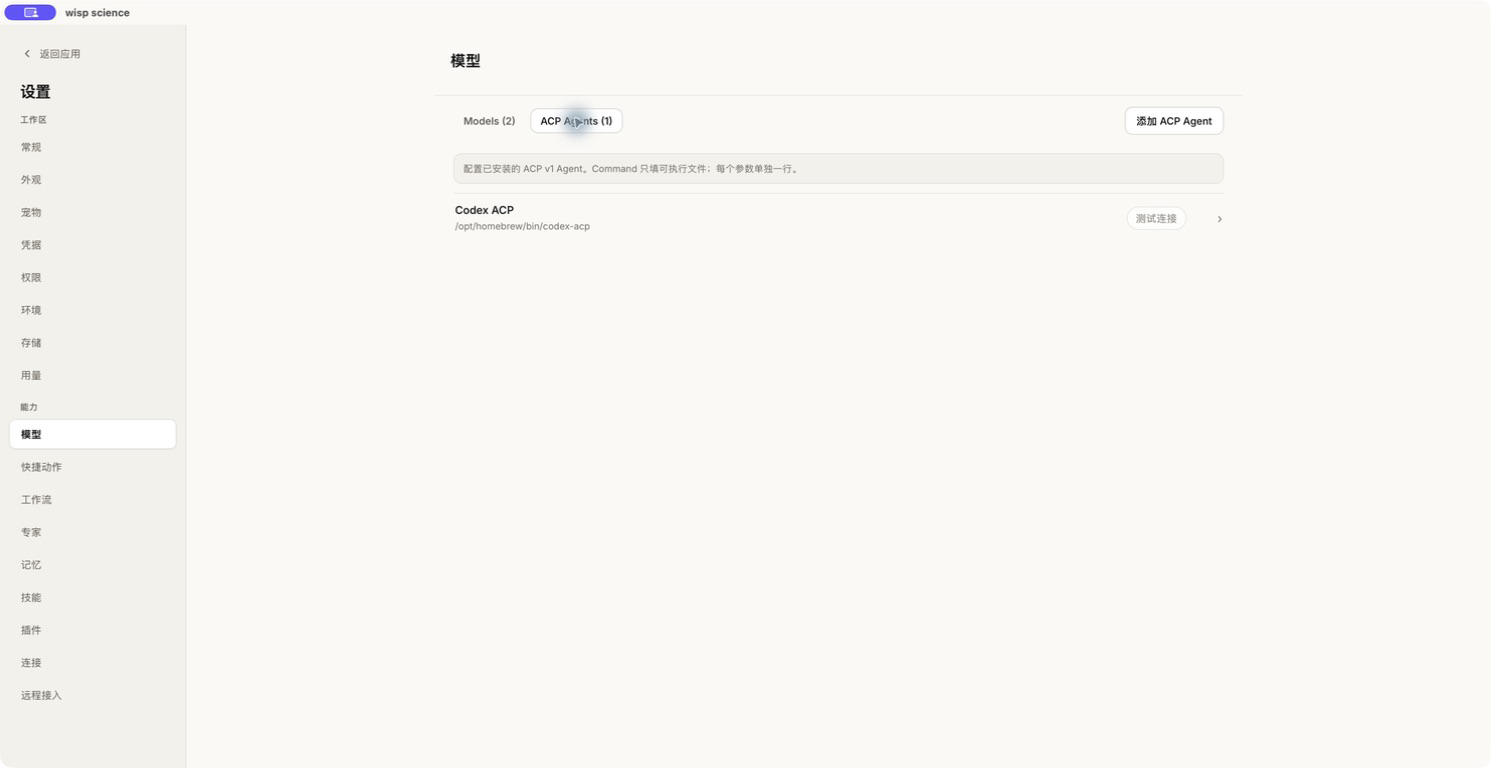
图 1:ACP Agents 与普通 HTTP 模型分开管理。截图展示中文界面,具体布局可能随版本调整。
填写以下字段:
| 字段 | 填写方式 |
|---|---|
| 显示名称 | 便于识别的名称,例如 Codex ACP |
| 命令 | 只填写可执行文件名或完整路径 |
| 参数 | 每个参数单独一行,不要把整条命令拼进命令字段 |
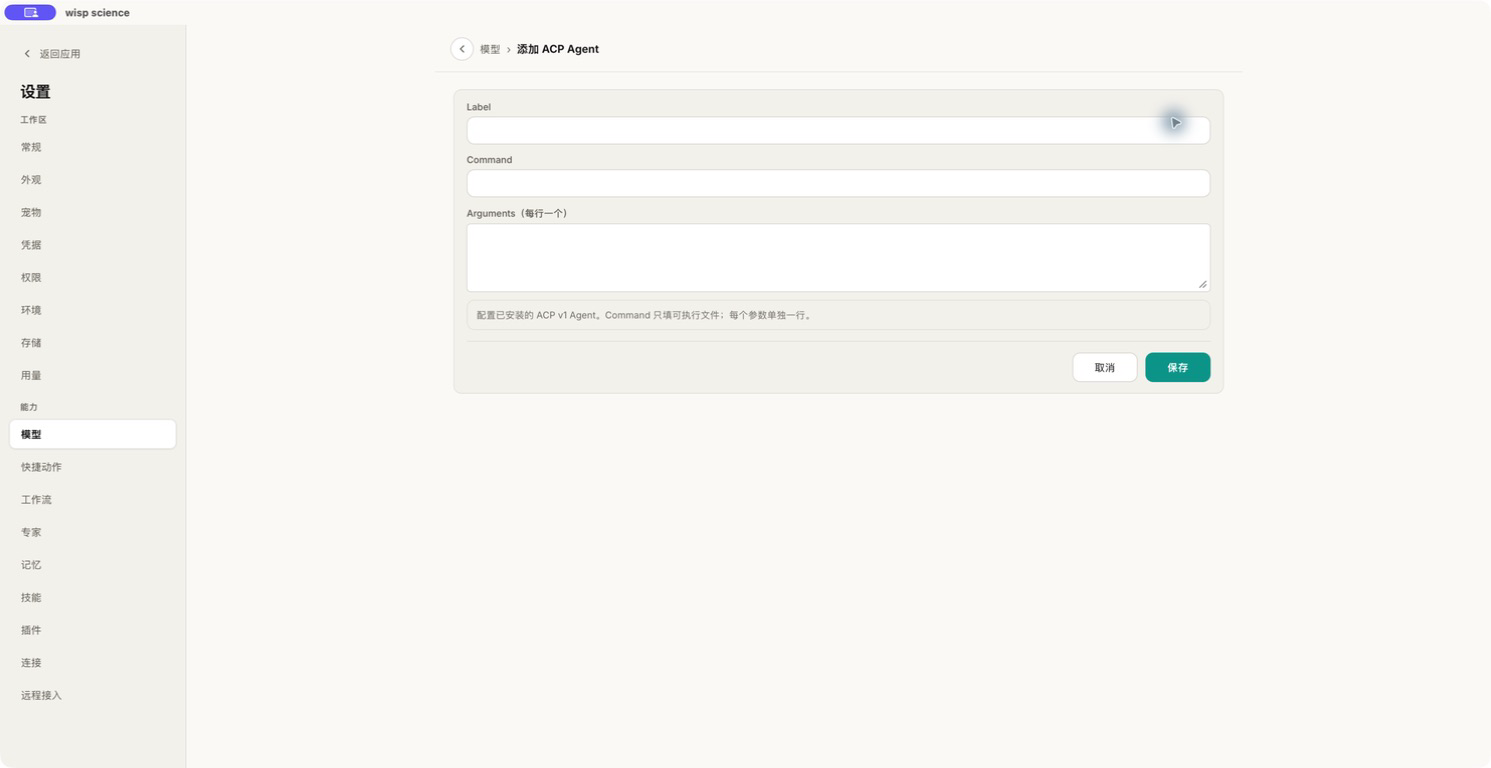
图 2:命令与参数分别填写。Windows 使用 npx 启动时通常填写 npx.cmd,必要时改为完整路径。
示例一:通过 npx 启动 Codex ACP。
先在终端验证:
npx -y @agentclientprotocol/codex-acp --version
在 Wisp 中将名称填为 Codex ACP,命令填为 npx;Windows 通常使用 npx.cmd。参数框填写两行:
-y
@agentclientprotocol/codex-acp
如果希望先全局安装,可以运行:
npm install -g @agentclientprotocol/codex-acp
codex-acp --version
全局安装后,命令字段可填 codex-acp 或其可执行文件完整路径,参数留空。按适配器说明配置底层 Agent 的认证;需要指定特定 Codex 程序时,参考适配器的 CODEX_PATH 说明。
示例二:接入 Claude Agent ACP。
同样可以先检查:
npx -y @agentclientprotocol/claude-agent-acp --version
名称填 Claude ACP,命令填 npx 或 Windows 上的 npx.cmd,参数分两行:
-y
@agentclientprotocol/claude-agent-acp
也可以全局安装后使用 claude-agent-acp,参数留空:
npm install -g @agentclientprotocol/claude-agent-acp
claude-agent-acp --version
以上命令用于展示启动方式,不代表已经完成安装或认证。只配置你实际准备使用的 Agent 即可。
保存、测试,再完成认证。
保存 Agent 后点击 测试连接。测试成功表示进程能够启动,并完成 ACP initialize,不代表所有任务权限和服务额度都已验证。
如果出现认证按钮,按 Agent 返回的方式操作。有些认证直接通过 Agent 完成;需要终端登录的方式,会在 Wisp 的终端面板中打开适配器提供的登录命令。完成登录后,再测试或开始会话。凭据由 Agent 管理,Wisp 不会将它们写入 SQLite。
新建空会话,进行第一次测试。
回到对话,在空会话的模型选择器中选中对应 ACP Agent,发送一个简单问题:
请用两句话解释 CSV 文件,并给出一个包含两行数据的示例。不要读取文件或运行命令。
首条消息后,这段会话会绑定到所选 Agent。从已有消息的普通对话选择 ACP 时,Wisp 会创建新的空会话,并保留输入框草稿。希望切回普通 HTTP 模型时,也应新建空会话再选择。
任务期间的权限卡会展示 Agent 提供的选项。若 Agent 支持 model、mode 等会话配置,可通过发送按钮旁的 ACP 模型菜单调整;停止按钮用于取消当前 ACP 回合。
Wisp 会向用户自己的 ACP 会话提供科研 MCP bridge,让外部 Agent 在项目范围内发现并使用可用的科学工具。具体能力和权限仍以当前会话提供的配置为准。
连接失败时,先修复 ACP 配置再重试。
| 现象 | 优先检查 |
|---|---|
| 测试立即失败 | 可执行文件是否在 PATH,参数是否分行,Windows 是否需要 npx.cmd |
| 认证失败 | 底层 Agent 是否完成登录或 API Key 配置,是否需要终端交互 |
| 提示会话选择已锁定 | 新建空会话,再选择另一种后端 |
| 修改命令或项目路径后无法继续 | 使用新会话;旧会话的启动配置和路径可能已不匹配 |
| 启动、断连或恢复失败 | 查看原始错误,检查连接与登录,再重新发送消息 |
ACP 失败不会自动切换成 HTTP 模型。如果要改用 HTTP,明确新建对话并选择对应模型。普通 HTTP 模型的调用可能使用另一套账号或额度。
当前 ACP 接入使用本机 stdio,不支持直接把 WSL/SSH/远程 URL 当作 ACP 启动环境,也没有应用内适配器安装市场。重启后能否恢复会话,还取决于适配器的恢复能力,以及配置和项目路径是否保持一致。
完整行为与能力边界见 ACP Agents 文档。本文依据撰写时的项目实现整理,截图与命令用于说明配置流程,不代表已经完成外部 Agent 登录或调用。
If you already use an external agent such as Codex or Claude and want to work with it inside Wisp Science's project interface, connect it through ACP. Wisp provides the project UI, messaging, and permission interactions; the external agent owns its session, tools, and authentication.
This tutorial covers preparing a local adapter, configuring it, testing the connection, and starting a conversation. For ordinary model APIs, see Model Configuration.
Distinguish HTTP models from ACP agents.
| Method | Settings entry | Agent performing the task |
|---|---|---|
| HTTP model | Settings → Models → Models → Add API access | Wisp's built-in agent, calling a model API |
| ACP agent | Settings → Models → ACP Agents → Add ACP Agent | An external process started locally |
ACP is the Agent Client Protocol. Wisp connects to an ACP v1 process over local standard input and output. Enter an adapter launch command, not an API address.
Do not put bare codex, claude, or claude -p commands in the ACP form. Use the appropriate ACP adapter. External-agent login and keys are separate from Wisp's HTTP model configuration.
Prepare the runtime and adapter.
Install the Node.js runtime required by the adapter, then install and authenticate the underlying agent according to its instructions. Available adapters include:
- Codex ACP:
@agentclientprotocol/codex-acp. - Claude Agent ACP:
@agentclientprotocol/claude-agent-acp.
Verify that the adapter starts in a system terminal. An ACP process may wait for protocol messages on stdin rather than show an ordinary chat prompt; that alone does not indicate a failure.
Switch Models settings to ACP Agents.
Open a project, go to Settings → Models, select ACP Agents, and click Add ACP Agent. Click an existing row to edit it.
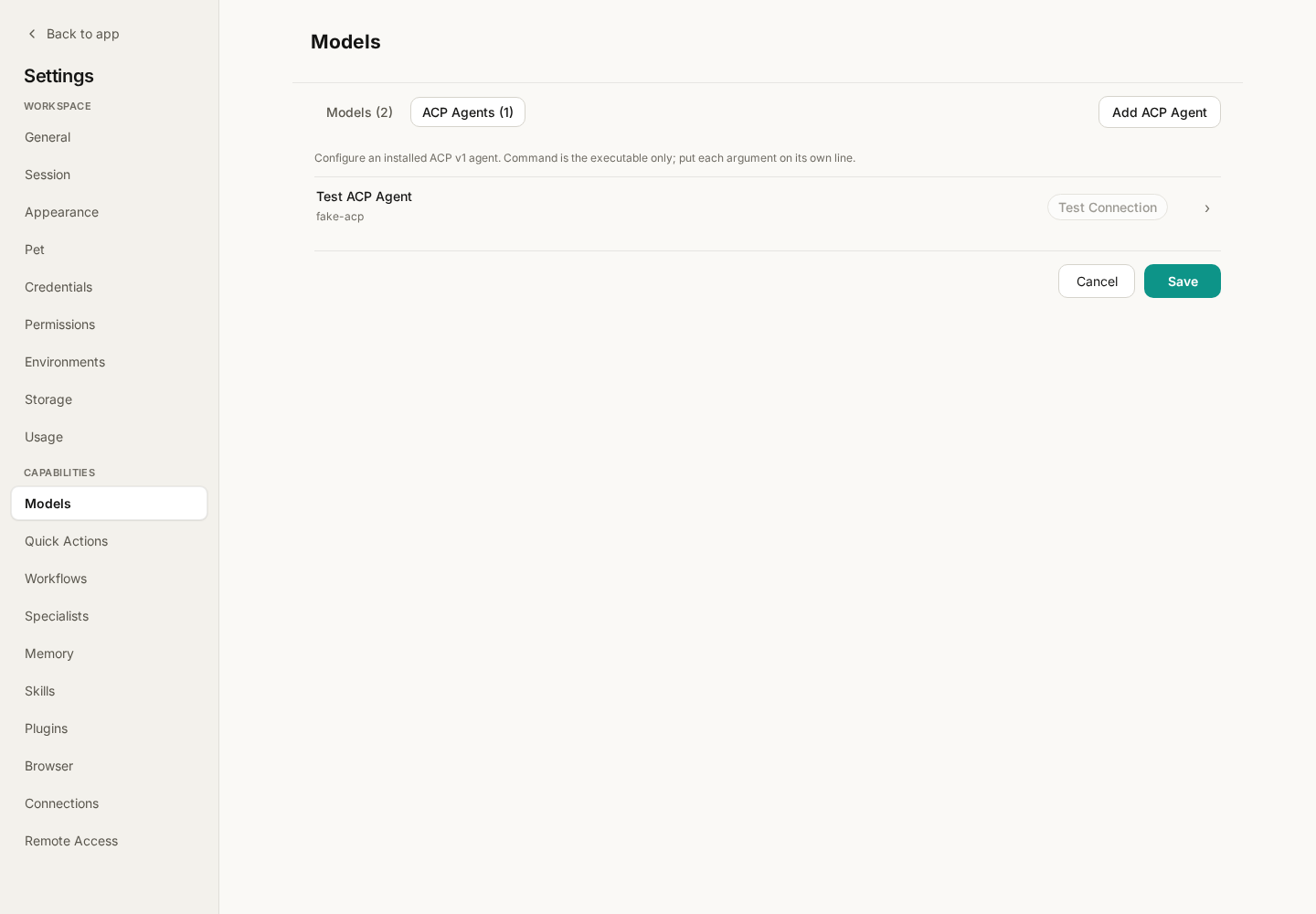
Figure 1: ACP agents and HTTP models are managed separately. Screenshots use the English interface; layouts may vary between versions.
| Field | What to enter |
|---|---|
| Label | A recognizable name, such as Codex ACP |
| Command | Only an executable name or its full path |
| Arguments | One argument per line; do not paste the whole command into Command |
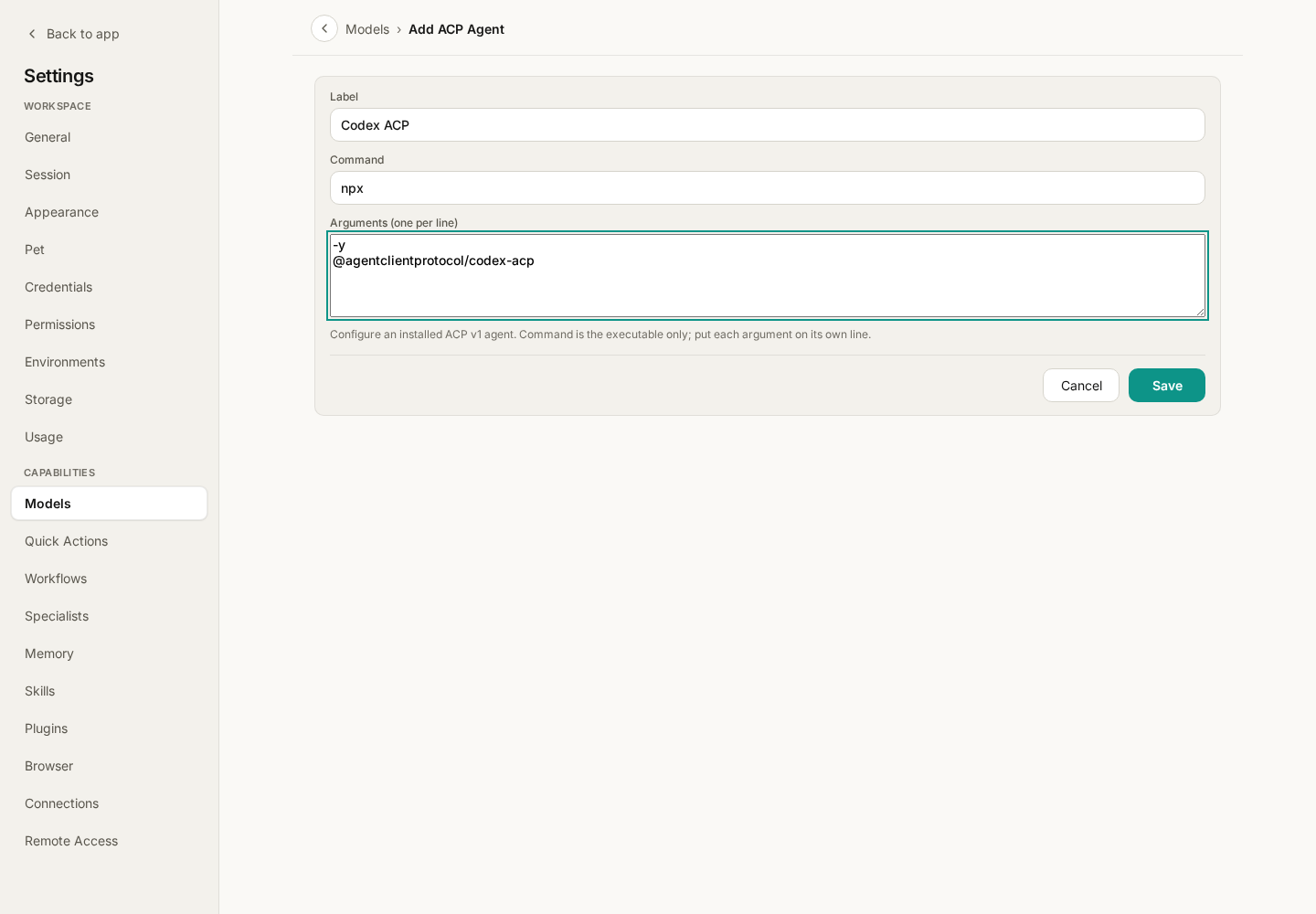
Figure 2: Keep Command and Arguments separate. On Windows, use npx.cmd when launching through npx, or its full path if necessary.
Example 1: start Codex ACP through npx.
Check in a terminal:
npx -y @agentclientprotocol/codex-acp --version
In Wisp, use label Codex ACP and command npx, or normally npx.cmd on Windows. Put these on two separate argument lines:
-y
@agentclientprotocol/codex-acp
For a global installation:
npm install -g @agentclientprotocol/codex-acp
codex-acp --version
Then use codex-acp or its full executable path as Command and leave Arguments empty. Follow the adapter's instructions for underlying-agent authentication. See its CODEX_PATH documentation if you need a particular Codex executable.
Example 2: connect Claude Agent ACP.
Check the adapter:
npx -y @agentclientprotocol/claude-agent-acp --version
Use label Claude ACP, command npx or npx.cmd on Windows, and two argument lines:
-y
@agentclientprotocol/claude-agent-acp
Or install it globally and use claude-agent-acp with empty Arguments:
npm install -g @agentclientprotocol/claude-agent-acp
claude-agent-acp --version
These demonstrate launch configurations, not completed installation or authentication. Configure only the agent you intend to use.
Save, test, and authenticate.
Save the agent, then click Test Connection. Success means the process started and completed ACP initialize; it does not verify every task permission or service quota.
If authentication buttons appear, follow the methods advertised by the agent. Some operate through the agent directly. Terminal methods open the adapter's advertised login command in Wisp's terminal dock. Complete login, then test or start the session again. Credentials remain with the agent and are not written to Wisp's SQLite database.
Try a simple request in an empty conversation.
Select the ACP agent in an empty conversation's model picker and send:
Explain CSV files in two sentences and provide an example with two data rows. Do not read files or run commands.
The first message binds the conversation to that agent. Selecting ACP from an ordinary conversation that already has messages creates a new empty session and preserves the composer draft. To return to an HTTP model, start another empty session and select that model.
Permission cards display the agent's supplied choices. If it advertises session settings such as model or mode, adjust them in the ACP model menu beside Send. Stop cancels the active ACP turn.
Wisp provides its scientific MCP bridge to user-owned ACP sessions, allowing the external agent to discover and use available scientific tools in project scope. Actual capabilities and permissions depend on the current session configuration.
Fix the ACP connection before retrying.
| Symptom | Check first |
|---|---|
| Test fails immediately | Executable PATH, one argument per line, and whether Windows needs npx.cmd |
| Authentication fails | Underlying agent login/key and any required interactive terminal flow |
| Session selection is locked | Start a new empty session before choosing another backend |
| A changed command or project path prevents continuation | Start a new session; the old launch configuration or path may no longer match |
| Startup, disconnect, or resume failure | Original error, connection, and login; resend after fixing the cause |
ACP failure does not silently switch to an HTTP model. To use HTTP instead, explicitly start a new conversation and select it. HTTP calls may use a different account or quota.
ACP currently uses local stdio. It does not directly launch an ACP agent through WSL, SSH, or a remote URL, and there is no in-app adapter installation marketplace. Resuming after restart depends on adapter support and matching launch configuration and project path.
See ACP Agents for full behavior and capability boundaries. This tutorial reflects the implementation when written. Screenshots and commands illustrate setup, not completed external-agent logins or calls.