
Wisp Science基础入门:导入、导出与分享
查看原文一项分析做完后,经常会遇到三个不同的需求:换台电脑继续整个项目,把某一次对话交给同事,或者只把一段结果发到组会群里。
Wisp Science 为这些需求提供了不同入口。选对导出范围,后续导入和阅读会方便很多。这篇文章按“整个项目 → 单个会话 → 部分消息”的顺序介绍,并说明每种方式能带走什么。
本文配图来自实际前端,使用演示项目和教学会话。表格中的数字、项目路径与联系人均为示例,不代表真实实验结果或已完成的迁移。
先决定要交付什么,再选择导出方式。
| 需求 | 选择什么 | 接收方怎样使用 |
|---|---|---|
| 换电脑继续整个项目 | 项目 ZIP | 在 Wisp 的“导入项目”中恢复 |
| 只交接一段完整会话及可导出的关联产物 | 会话 ZIP | 在目标项目中使用“导入会话归档” |
| 展示会话中的几条消息 | 分享为 PNG 长图或 HTML | 用图片查看器或浏览器阅读 |
| 检查完整执行过程 | 轨迹导出 HTML | 阅读调用、结果、耗时和用量记录 |
项目 ZIP 和会话 ZIP 虽然扩展名相同,内容格式和导入入口不同。分享 HTML 与轨迹 HTML 也是阅读材料,不能当作会话归档导回 Wisp 继续对话。
导出整个项目,适合迁移和完整交接。
先等当前项目的活动对话和任务结束。然后在项目卡片上点击 导出项目,也可以打开项目后使用 文件 → 导出当前项目。
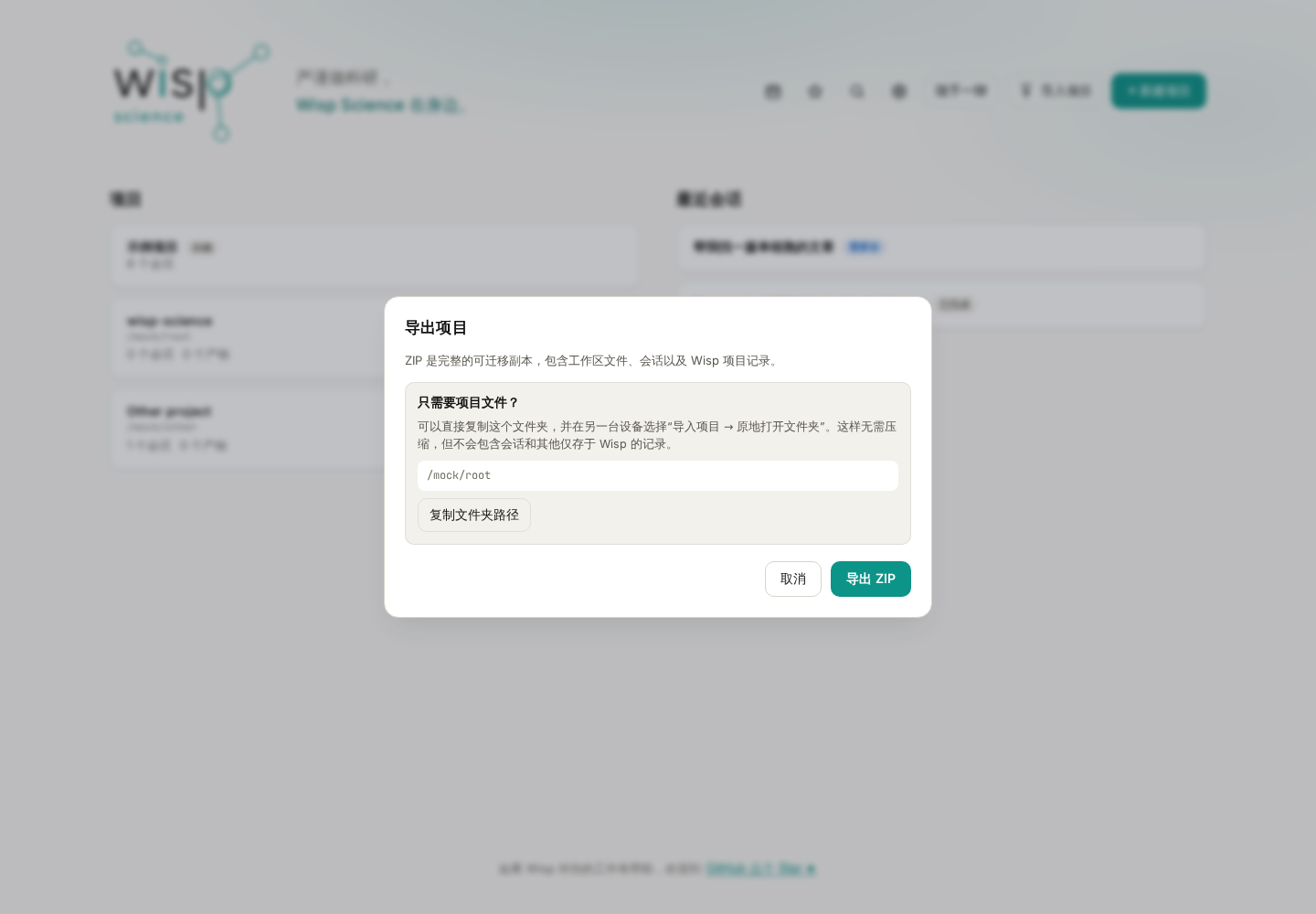
图 1:只要普通文件时,可以自行复制项目文件夹;需要一起带走 Wisp 中的会话和项目记录时,选择完整 ZIP。
选择 导出 ZIP 和保存位置后,右下角会显示处理阶段、文件数量、大小和当前路径。等待导出完成,再复制生成的 ZIP。
导出期间,源项目会临时只读;其他项目仍可使用。不要把尚未完成或仍为空的目标文件发给接收方。
项目包包括工作区里的普通文件,以及项目拥有的会话、产物、Run、计划、溯源和研究图谱记录。它不会一并携带:
- 模型 API 密钥、其他密钥环秘密和全局模型配置。
- 这台电脑的 SSH/WSL 环境配置。
- 外部 ACP Agent 正在运行的进程状态。
- 远程引用背后的整份服务器数据。
因此,接收方恢复项目后,仍需要配置自己的模型和服务器。远程路径可以作为引用保留,但不会因为 ZIP 导入就自动获得访问权限。
导入整个项目,先区分 ZIP 与普通文件夹。
在项目首页点击 导入项目,可以看到不同的导入方式。
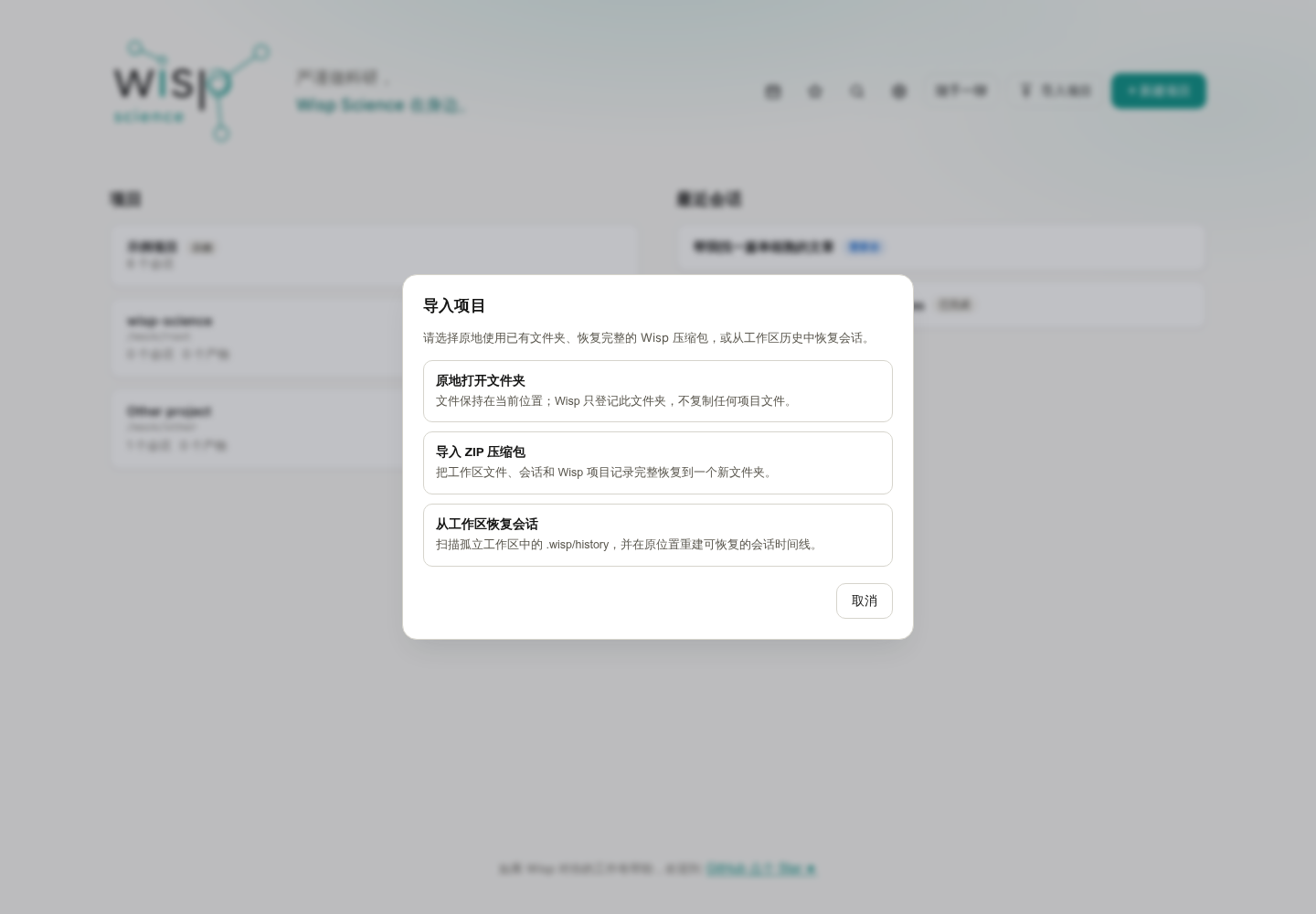
图 2:已经复制到本机的文件夹,可以原地打开;Wisp 导出的完整项目 ZIP,应走 ZIP 导入入口。工作区会话恢复是另一种应急方式。
迁移完整项目时:
- 选择 导入 ZIP 压缩包,打开 Wisp 导出的项目 ZIP。
- 选择本机父目录,Wisp 会在其中创建项目目录。
- 等待右下角导入进度完成,再从项目页打开。
- 核对会话、脚本、图表和关键数据路径,再配置目标机器需要的模型与环境。
如果手里只是普通文件夹,选择 原地打开文件夹。它登记的是这个现有位置,不会复制一份新工作区;只复制文件夹,也不能恢复仅存于另一台设备数据库中的完整会话记录。
当原来的应用数据库和完整项目包都丢失,但工作区还在时,才考虑 从工作区恢复会话。它尝试读取工作区保存过的历史快照,并不是每条普通对话都一定能找回。
同一台设备重复导入相同项目 ID 会被拒绝,不会自动合并两个项目。需要经常切换设备时,可以进一步了解手动项目同步。
只交接一个会话,在会话列表里导出。
打开项目,在左侧找到目标会话。右键点击会话,或打开它的会话操作菜单,选择 导出会话。
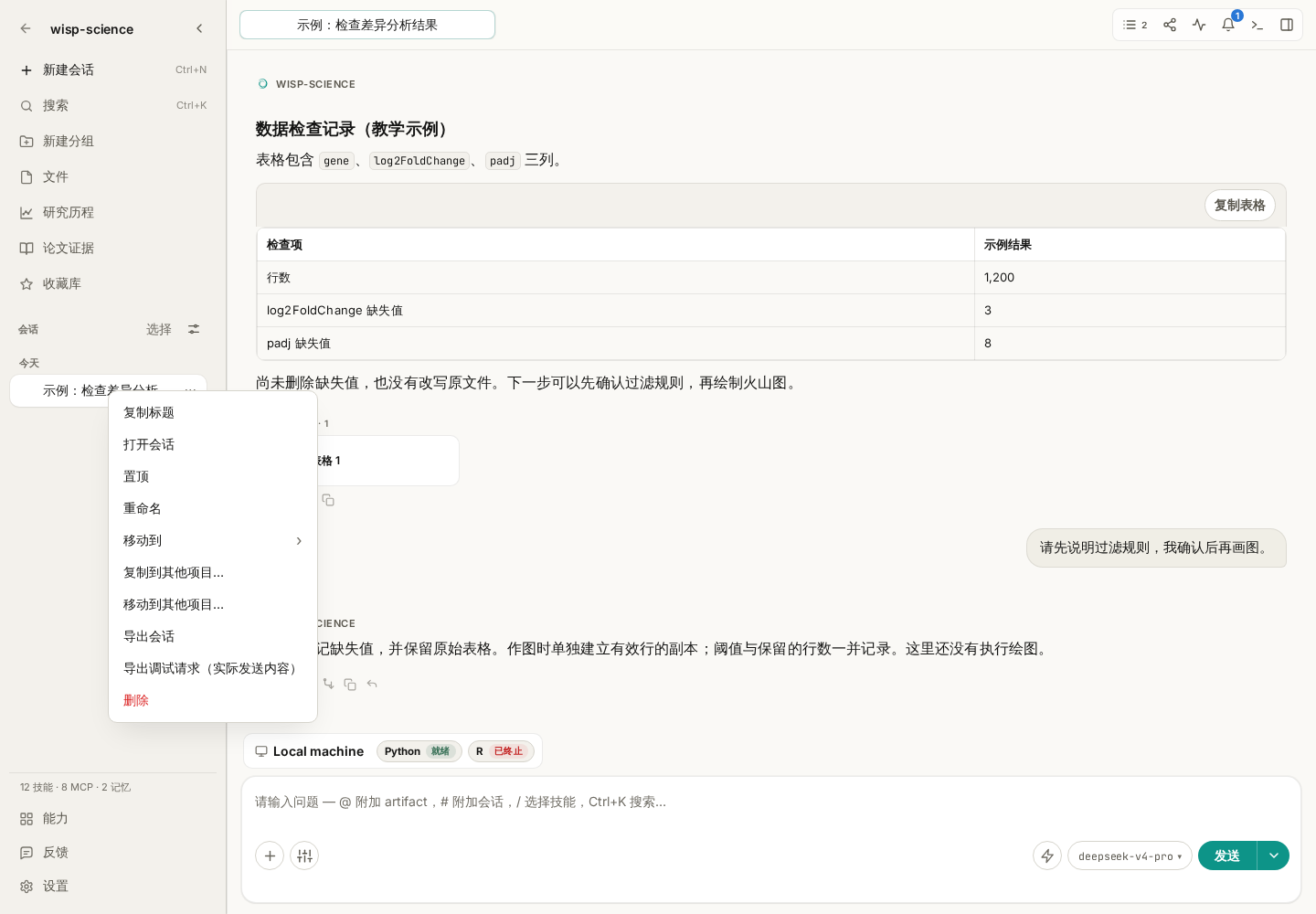
图 3:入口属于左侧会话条目。右键点击正文的一段普通文字,不会打开同一个会话导出菜单。
选择保存位置后,会得到会话 ZIP。包中包含消息记录、便于阅读的 Markdown 文本、工具调用记录,以及能够收集到的关联产物和相应信息。
这里导出的是会话记录及其关联文件,不能把它当作整个项目的压缩包。某个文件只在正文中被提到、实际位于远程,或者已经从本机删除时,不要默认它的内容一定被打包。
准备交接分析时,可以先要求 Wisp 列一份清单:
请根据这段会话整理交接清单,列出实际读取的输入文件、生成的脚本和结果文件,以及仍需另行提供的数据。每项标明本地或远程路径;不能确认存在的文件请明确标注。
再把清单与导出包核对。需要交付项目中的其他输入文件时,另外提供这些材料,或改用完整项目导出。
导入会话归档,要先打开接收它的项目。
进入目标项目,打开 编辑 → 导入会话归档。也可以按 Ctrl+P(macOS 为 Cmd+P),搜索“导入会话归档”。
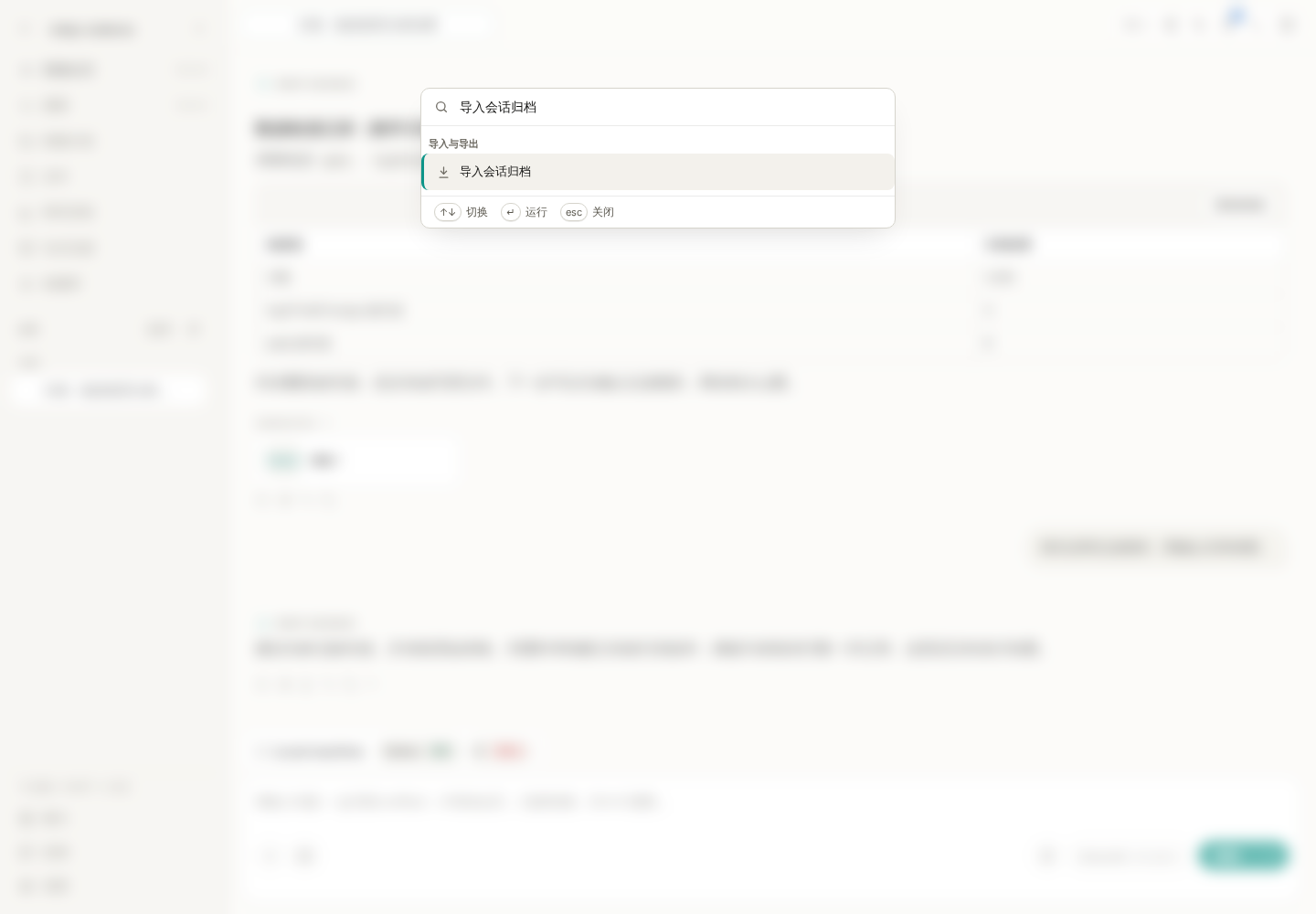
图 4:这条命令将会话导入当前项目。选择的是“导出会话”生成的 ZIP,不是项目 ZIP 或分享 HTML。
选择 ZIP 后,首次导入的会话会归入 imported 分组。打开它,核对消息是否完整,再检查关联产物能否读取。
产物的原相对路径安全且没有冲突时,会尽量恢复到相应位置。遇到路径冲突等情况,可能改放到 imports/<会话标识>/ 下;无法恢复的文件会被报告。导入后应查看实际位置,不要照着旧消息里的绝对路径直接运行。
单会话导入主要恢复消息与可提取的产物,不会重建所有项目级记录,也不会把归档中的执行溯源自动变成目标数据库里的运行记录。它同样不会恢复正在运行的 Python/R 内存、SSH 终端或 ACP 进程。
重复导入同一来源会话时,可能更新已有导入记录,或显示跳过;这不是双向合并工具。两边都继续了不同内容时,先保留各自备份,再决定怎样交接。
只分享部分内容,打开“分享为长图”。
如果只是向同事展示一次解释、一个结果表或几轮讨论,可以使用会话顶部的分享按钮,也可以在输入框发送 /share。
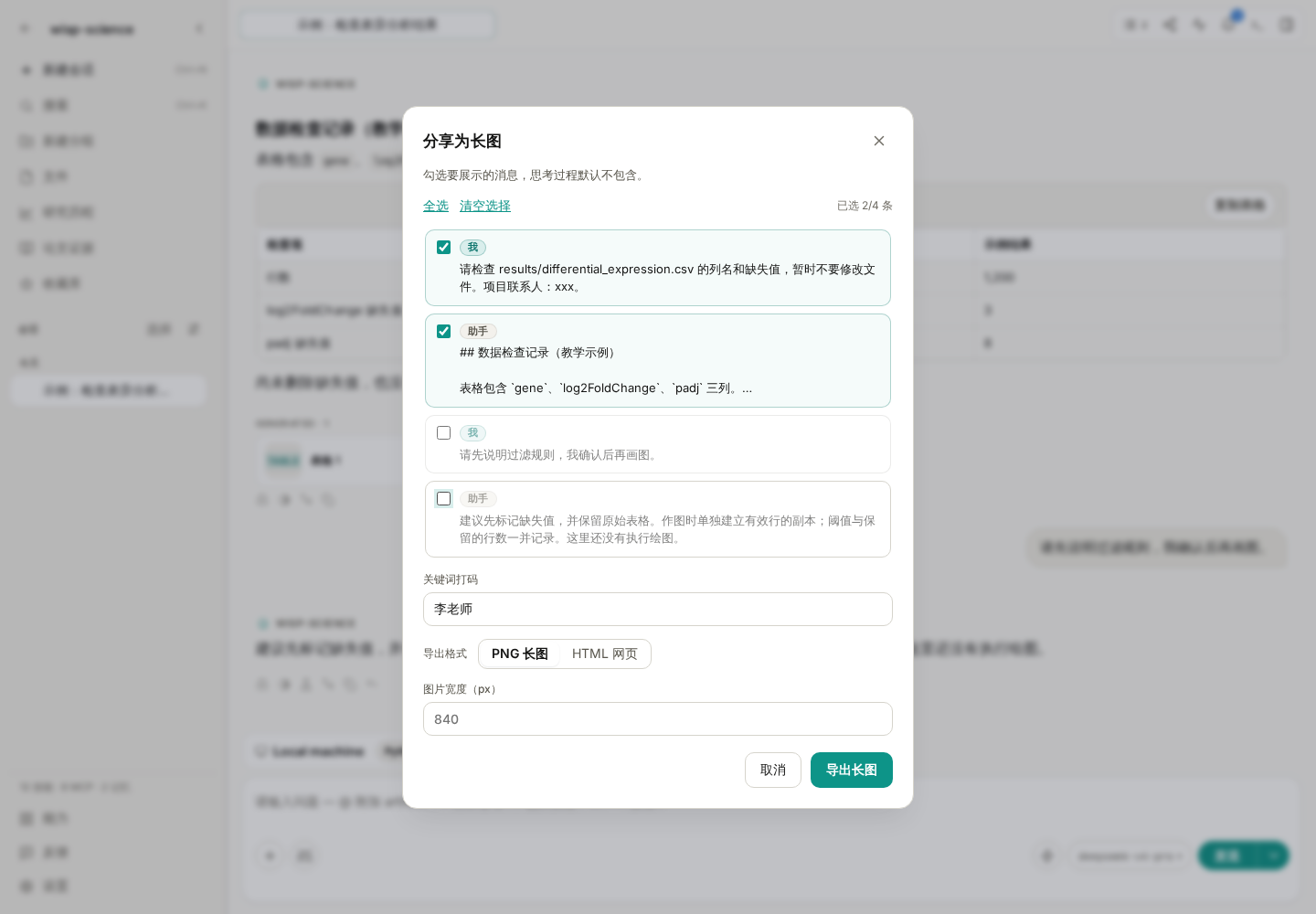
图 5:示例只保留前两条消息,并将“李老师”设为打码关键词。被取消勾选的后续讨论不进入这次分享。
操作顺序可以是:
- 勾选要分享的消息,取消不需要的部分。
- 在打码关键词中填写姓名、内部项目代号等需要替换的文字,检查预览。
- 选择 PNG 或 HTML。
- PNG 可调整图片宽度;HTML 保存为网页文件。
- 导出后,用相应查看器打开,确认文字、表格和公式是否清晰。
这个选择以“消息”为单位,不是任意圈选一句话。用户消息和助手回复默认选中,思考内容默认不选;工具调用和用量记录不作为普通分享消息列出。
| 格式 | 适合什么场景 | 使用前检查 |
|---|---|---|
| PNG 长图 | 发到群聊、插入组会材料 | 长度是否合适,小字是否清楚 |
| HTML 网页 | 用浏览器阅读较长讨论或结果表 | 文件能否打开,外部链接与图片是否仍可访问 |
关键词打码作用于这次分享副本,不会修改原会话。它按填写的文字替换,不能自动识别所有敏感信息,也不会替你擦除嵌入截图里的文字;导出后仍要检查一次。
点击导出只是保存文件,不会自动上传到公众号、群聊或其他平台。需要发送时,由你选择接收方。
分享结果和保留过程,可以一起做。
给同事看结论时,可以导出几条关键消息;需要一起排查错误时,再补充轨迹 HTML。如果对方要在 Wisp 中继续分析,则提供会话 ZIP 或项目 ZIP,并补齐输入文件和环境信息。
第一次练习,可以在一个小型练习项目里建立两轮对话,分别尝试:导出项目、导出并导入一段会话、只分享其中一问一答。核对三种文件的打开方式后,再用于正式交接。
遇到问题,先核对归档类型与实际范围。
| 现象 | 优先检查 |
|---|---|
| ZIP 导入提示格式不对 | 项目 ZIP 是否误用了会话导入入口,或反过来 |
| 复制文件夹后找不到会话 | 是否只复制了文件,没有迁移数据库中的项目记录 |
| 导入后某个文件打不开 | 是否原本是远程引用、包内缺失,或因冲突改到了 imports/ |
| 导入后不能继续运行 | 目标机器的模型、解释器、依赖和服务器是否重新配置 |
| 想把分享 HTML 导回会话 | HTML 用于阅读;继续对话需要会话 ZIP |
| 分享里没有工具调用细节 | 改用轨迹 HTML 检查执行过程 |
| 导出图太长或文字太小 | 减少选中消息,或调整宽度;长内容可以选 HTML |
项目迁移规则参见 Wisp 项目导出与导入,分享入口见 Wisp 基础配置。本文依据撰写时的项目实现整理,不同版本的界面文字可能略有差异;示例提示词不代表已经执行的文件检查。
After an analysis, you may want to continue the whole project on another computer, hand one conversation to a colleague, or share a few results with your lab group.
Wisp Science provides separate entry points for these needs. Choosing the right scope makes importing and reading easier. This tutorial goes from the whole project to one conversation and then selected messages, explaining what each option carries.
Screenshots use the real frontend in English with demonstration projects and conversations. Numbers, paths, and contact names are examples, not real experimental results or evidence of completed migration.
Choose what you want to deliver.
| Need | Export | How the recipient uses it |
|---|---|---|
| Continue the whole project on another computer | Project ZIP | Restore through Import project in Wisp |
| Hand off one complete conversation and exportable associated artifacts | Session ZIP | Use Import session archive in the target project |
| Show a few messages | PNG long image or HTML sharing export | Read with an image viewer or browser |
| Inspect the execution process | Trajectory HTML export | Review calls, results, time, and usage |
Project ZIPs and session ZIPs share an extension but have different formats and import entry points. Sharing HTML and trajectory HTML are reading materials, not archives that can be imported to resume a conversation.
Export a whole project for migration or a complete handoff.
Wait for active conversations and tasks in the project to finish. Click Export project on its project card, or open it and choose File → Export current project.
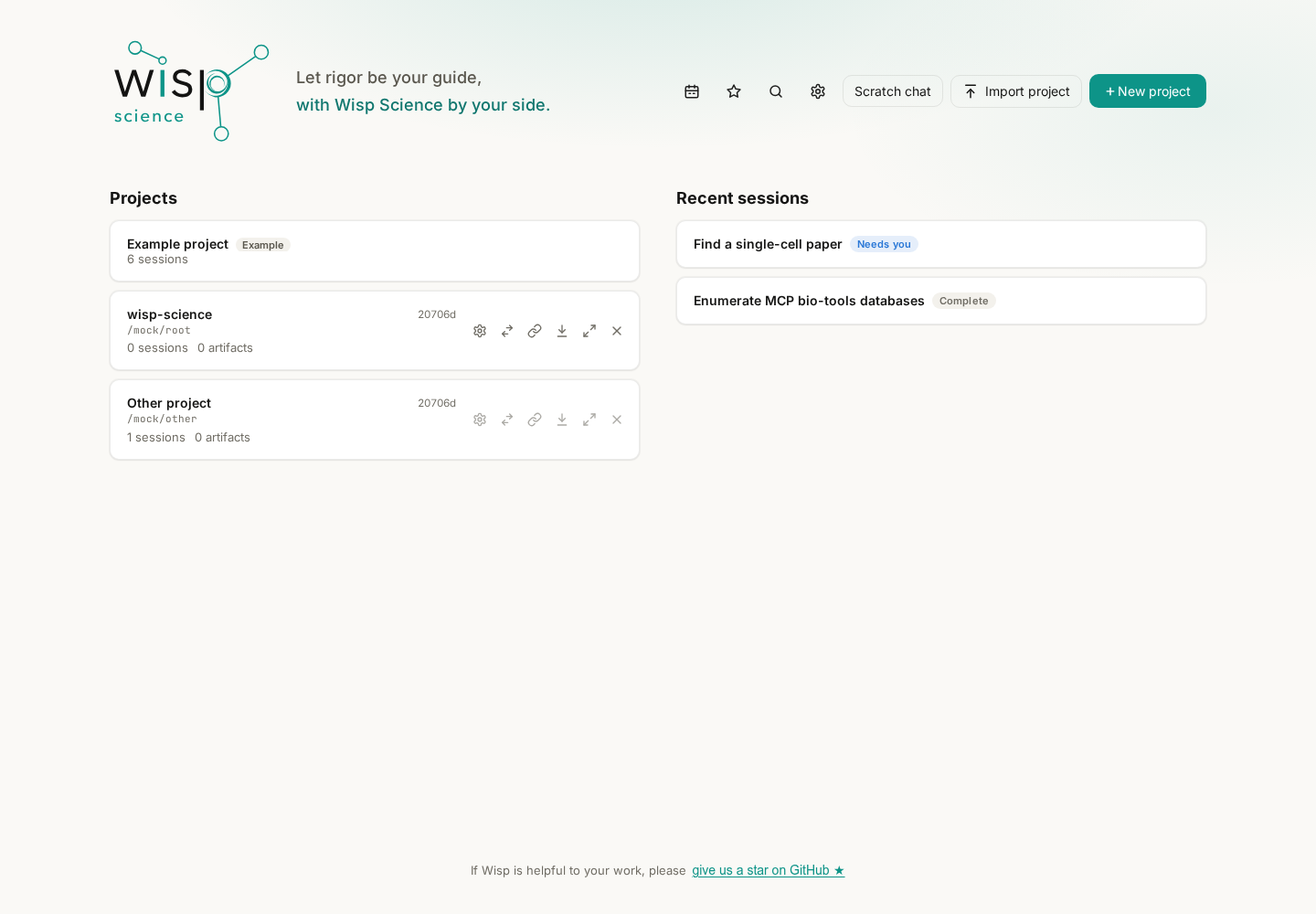
Figure 1: Copy the ordinary project folder yourself when you only need files. Choose a full ZIP when you also need Wisp conversations and project records.
Choose Export ZIP and a destination. A progress card at the lower right reports stage, file count, bytes, and current path. Wait for completion before copying the ZIP.
The source project is temporarily read-only during export; other projects remain usable. Do not send a destination file that is unfinished or still empty.
The package includes regular workspace files and project-owned conversations, artifacts, Runs, plans, provenance, and research-graph records. It does not carry:
- Model API keys, other keyring secrets, or global model configuration.
- This computer's SSH/WSL environment configuration.
- Running external ACP agent process state.
- Entire server datasets behind remote references.
The recipient must configure their own models and servers. A remote path may survive as a reference, but importing the ZIP does not grant access to it.
Distinguish a project ZIP from an ordinary folder.
Click Import project on the Projects screen to see the choices.
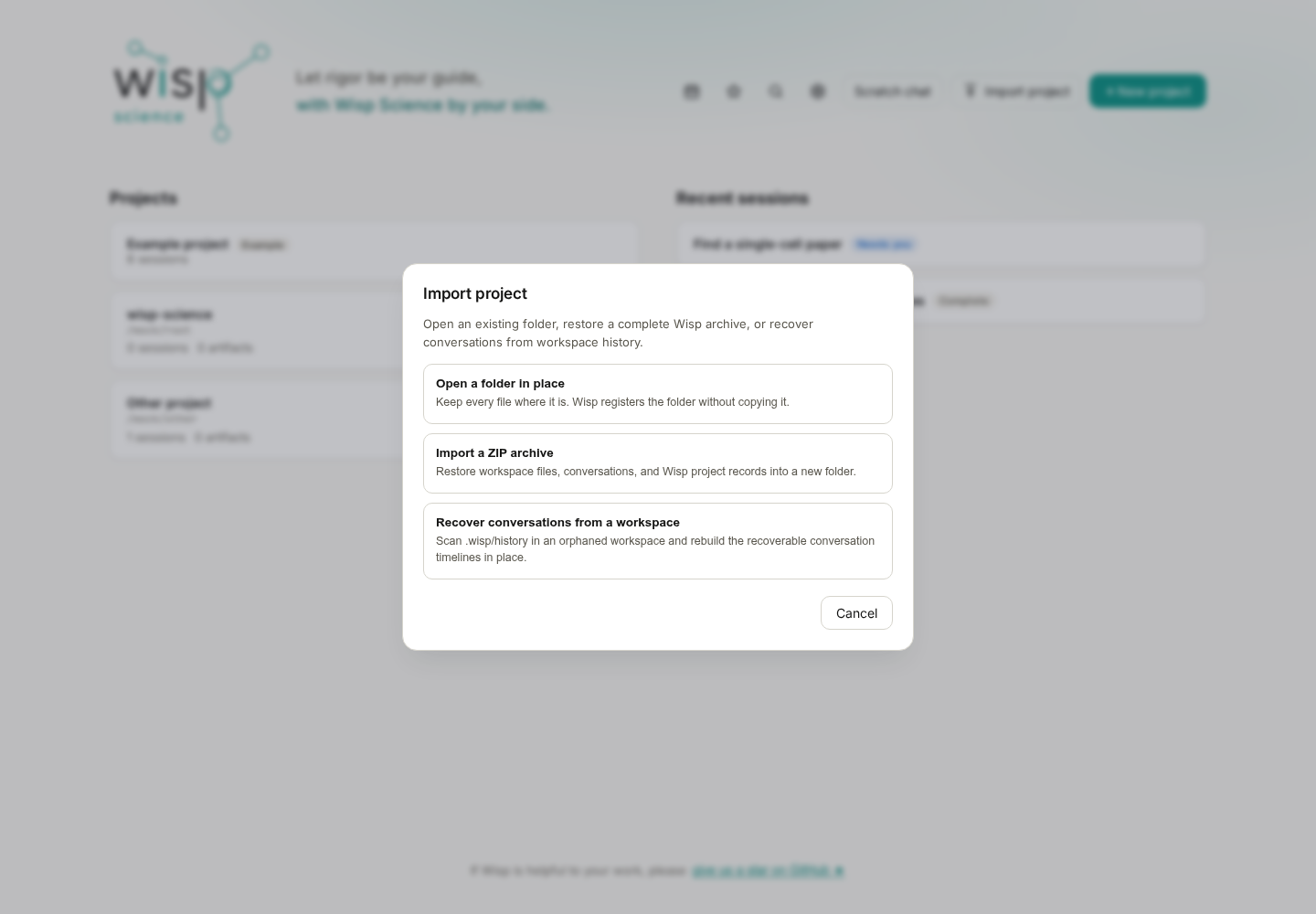
Figure 2: Open an already-copied folder in place. Use ZIP import for a complete Wisp project export. Workspace conversation recovery is a separate fallback.
For a complete migration:
- Choose Import a ZIP archive and select the exported Wisp project ZIP.
- Select a local parent directory; Wisp creates the project directory inside it.
- Wait for the progress card to finish, then open the project from the Projects screen.
- Check conversations, scripts, figures, and key data paths, then configure models and environments on the destination computer.
For an ordinary folder, choose Open a folder in place. This registers the existing location without copying a second workspace. Copying a folder alone cannot restore complete conversation records that exist only in the other computer's database.
Use Recover conversations from a workspace when the original app database and complete archive are lost but the workspace remains. It attempts to recover saved history snapshots; not every ordinary conversation necessarily has one.
Importing the same project ID twice on a device is rejected rather than merged. For frequent switching between devices, see Manual Project Sync.
Export one conversation from the sidebar.
Inside a project, find the conversation on the left. Right-click it, or open its conversation action menu, and select Export session.
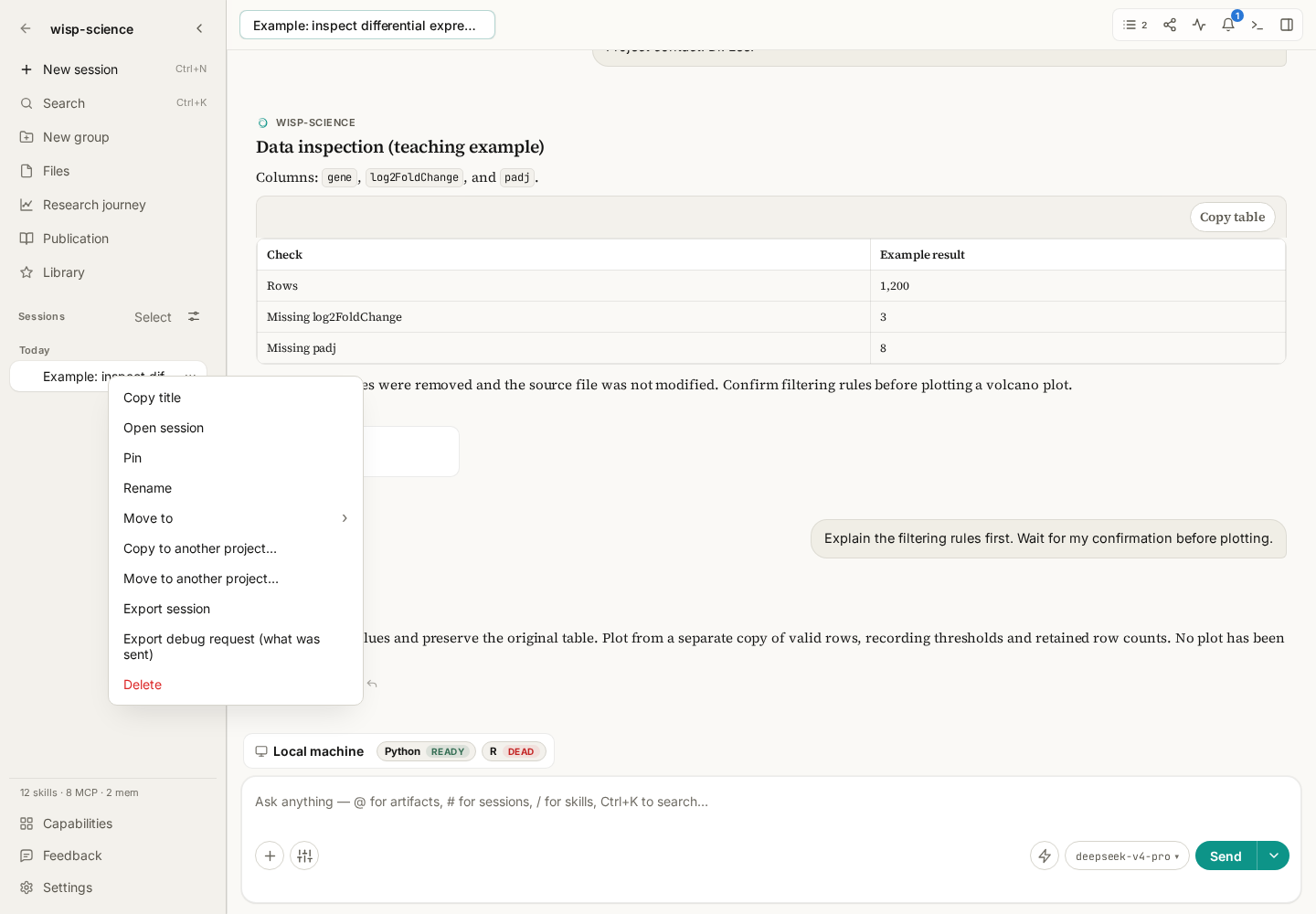
Figure 3: This menu belongs to the sidebar conversation entry. Right-clicking ordinary transcript text does not open the same export menu.
Choose a destination to save a session ZIP. It contains message records, readable Markdown, tool-call records, and associated artifacts and information that can be collected.
This is a conversation archive, not an archive of every project file. A file mentioned in prose, located remotely, or deleted locally is not guaranteed to be included.
Before handoff, ask for a checklist:
From this conversation, prepare a handoff checklist of inputs actually read, scripts and outputs generated, and data that must be provided separately. Identify each local or remote path, and mark files whose existence cannot be confirmed.
Compare the checklist with the archive. Supply other input files separately or export the complete project if that better matches the handoff.
Open the receiving project before importing a session.
In the target project, choose Edit → Import session archive. Alternatively, press Ctrl+P, or Cmd+P on macOS, and search for Import session archive.
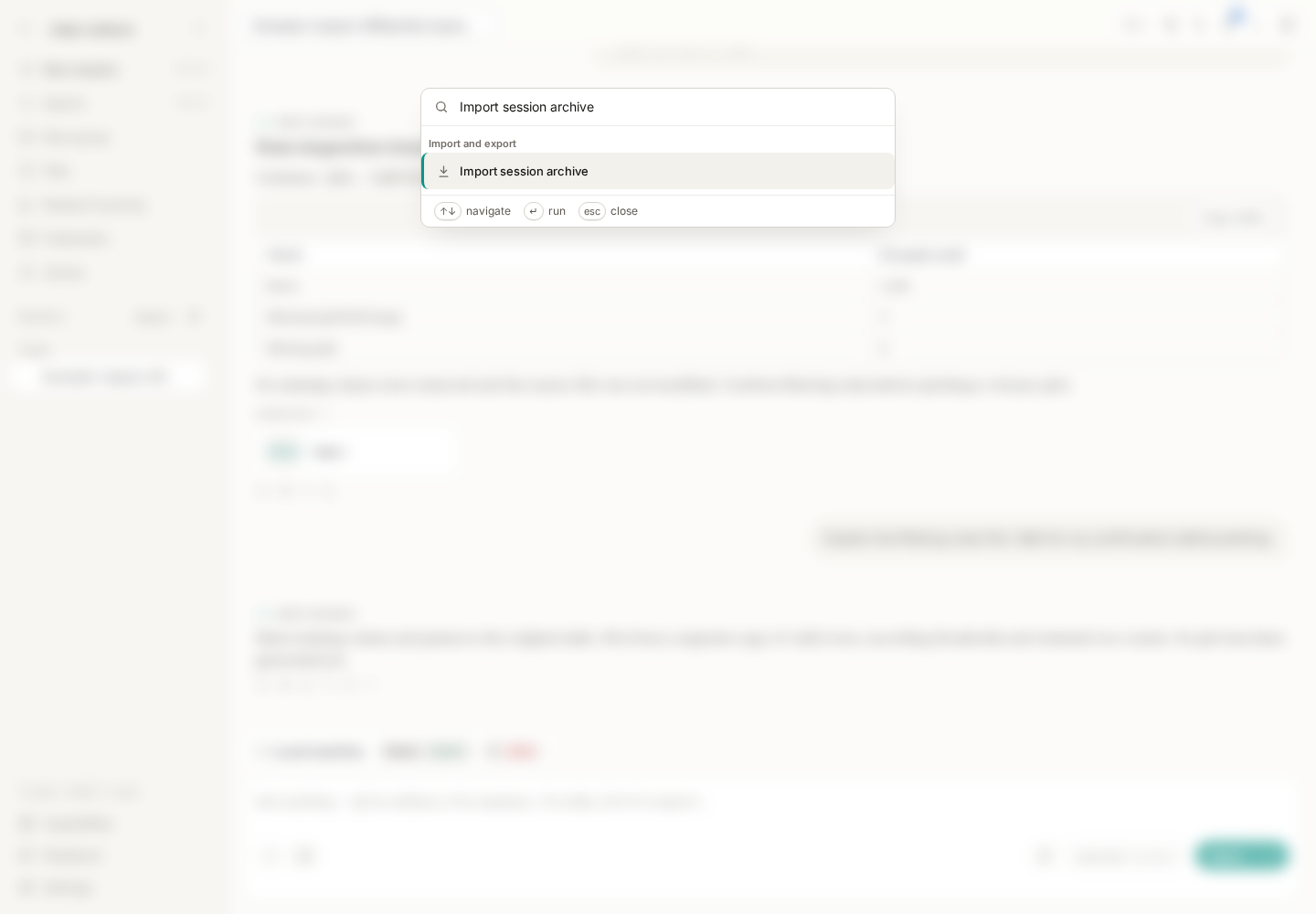
Figure 4: This imports into the current project. Select a ZIP produced by Export session, not a project ZIP or sharing HTML.
On first import, the conversation appears in the imported group. Open it, check the messages, and verify that associated artifacts are readable.
Artifacts are restored to their original relative paths where those paths are safe and unoccupied. Conflicts may place files under imports/<session-id>/; files that cannot be restored are reported. Inspect actual destination paths rather than running old absolute paths from the transcript.
Single-session import primarily restores messages and extractable artifacts. It does not reconstruct all project-level records or turn exported provenance into destination-database execution records. It also does not restore running Python/R memory, SSH terminals, or ACP processes.
Reimporting the same source session may update its existing import or skip it. This is not two-way merging. If both copies have continued differently, keep backups of both before deciding how to hand them off.
Use Share as image for selected messages.
For an explanation, result table, or a few turns, use the topbar share button or send /share in the message box.
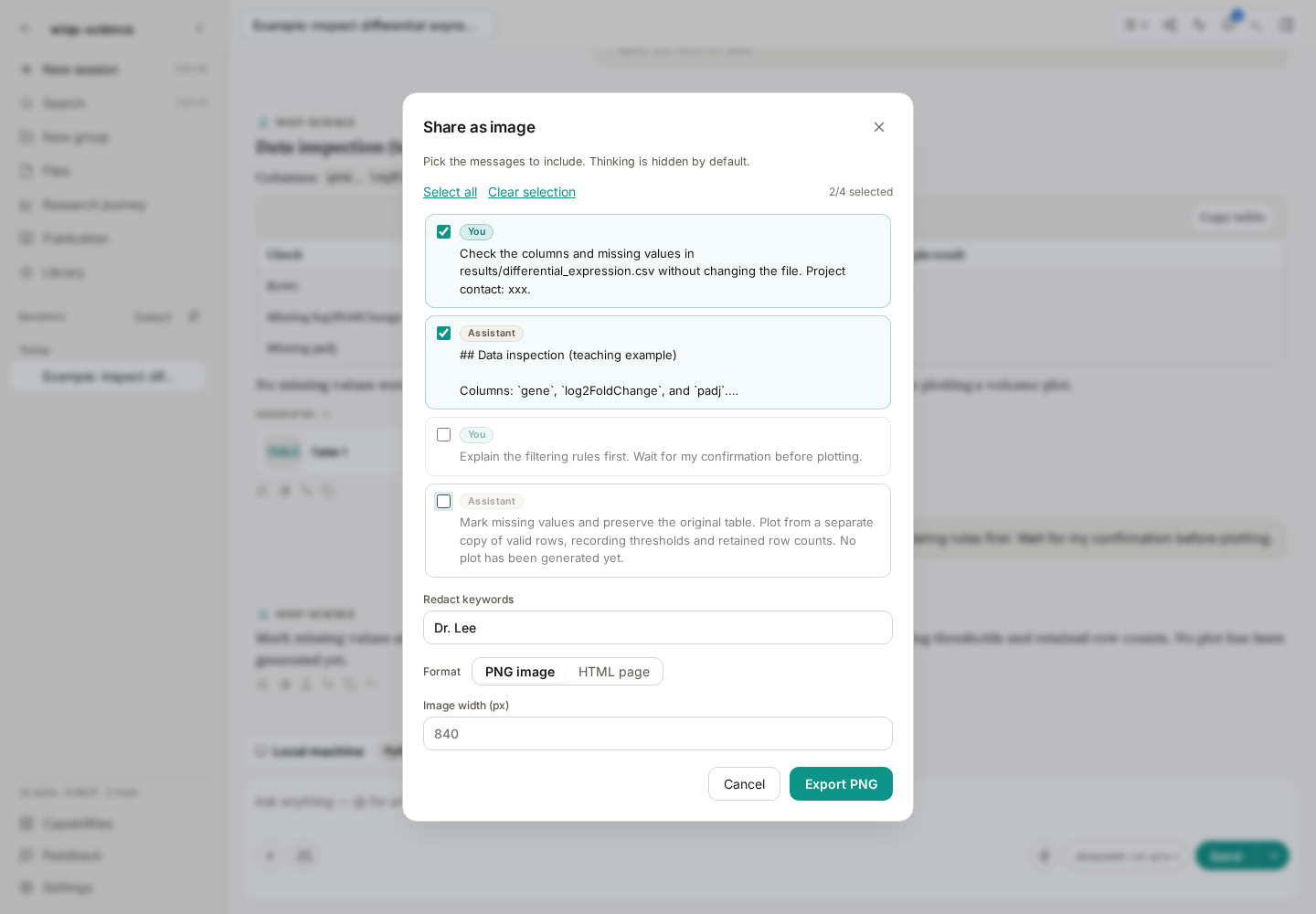
Figure 5: Only the first two messages are selected. The contact name “Dr. Lee” is entered as a redaction keyword; the later discussion is excluded.
A practical sequence is:
- Select the messages you want and deselect the rest.
- Enter names or internal project identifiers as redaction keywords and inspect the preview.
- Choose PNG or HTML.
- Adjust the image width for PNG, or save HTML as a webpage file.
- Open the export and check text, tables, and equations.
Selection is by whole message, not an arbitrary sentence selection. User messages and assistant replies are selected by default; thinking is not. Tool calls and usage records are not ordinary sharing rows.
| Format | Useful for | Check before sharing |
|---|---|---|
| PNG long image | Group chats and meeting materials | Reasonable length and legible small text |
| HTML webpage | Longer discussions and result tables in a browser | The file opens and any external links or images remain accessible |
Keyword redaction changes the sharing copy, not the saved conversation. It replaces supplied text; it does not automatically recognize every sensitive detail or erase words embedded in screenshots. Inspect the exported result.
Export saves a file. It does not automatically publish to a public account, group chat, or other platform. You choose the recipient afterward.
Share conclusions and retain the process together.
Export key messages for a colleague who needs the conclusion. Add trajectory HTML for debugging. To continue analysis in Wisp, supply a session or project ZIP and any required input data and environment information.
Practice in a small project with two conversation turns: export a project, export and import one session, and share just one question-and-answer pair. Check how each file opens before relying on it for a real handoff.
Check archive type and actual contents when troubleshooting.
| Symptom | Check first |
|---|---|
| ZIP import rejects the format | Project archive sent to session import, or session archive sent to project import |
| Conversations are missing after copying a folder | Whether only files were copied, leaving database records behind |
| An imported file cannot be opened | Remote reference, missing archive entry, or a conflict that moved it into imports/ |
| Analysis cannot resume after import | Models, interpreters, dependencies, and servers on the destination machine |
| Trying to import sharing HTML as a session | HTML is for reading; resuming a conversation requires a session ZIP |
| Shared output lacks tool-call detail | Use trajectory HTML to inspect execution |
| Shared image is too long or too small | Select fewer messages, change the width, or use HTML |
See Project Transfer for migration rules and Basic Configuration for sharing entry points. This tutorial reflects the implementation when written; labels may vary. Example prompts do not represent completed file inspections.