
Wisp Science基础入门:服务器环境配置
查看原文做科研时,文件和计算往往不在同一台电脑上:日常在笔记本里读文献,数据放在实验室服务器,分析需要远程的 Python、R 或 GPU。切换机器时,最容易弄混的是“我现在在哪台机器上”和“这条路径属于哪里”。
Wisp Science 可以登记服务器,把计算环境附加到对话,也能打开交互终端,让你亲自检查目录和命令。这篇文章从添加一台 SSH 主机开始,再介绍怎样为会话选择计算环境,以及使用应用里的交互终端。
本文配图来自实际前端,服务器、GPU 信息和终端状态使用演示数据。示例主机
gpu.example.org不能当作真实服务器连接;截图不代表已经访问了某台远程主机。
先分清两个入口,避免把它们当成同一件事。
| 入口 | 谁来操作 | 适合做什么 |
|---|---|---|
| 对话中的计算环境 | 你描述任务,Wisp 在指定环境调用工具 | 读取远程数据、运行分析、提交结构化任务 |
| Wisp 内的交互终端 | 你输入命令,终端直接执行 | 检查目录、调试环境、查看程序输出 |
服务器配置解决“Wisp 可以使用哪台机器”,交互终端让你亲自输入命令。希望在系统终端中直接使用 Wisp Agent,可以继续阅读 Wisp 命令行。
添加服务器前,先准备连接信息。
向管理员确认主机地址、账号、SSH 端口和认证方式。如果需要 VPN、跳板机或特定 SSH 配置,也先按实验室要求准备好。
一个示例对应关系是:
| 信息 | 示例 | 说明 |
|---|---|---|
| 名称/别名 | gpu-lab |
在 Wisp 中识别服务器的名称 |
| 主机地址 | gpu.example.org |
换成管理员提供的真实地址 |
| 用户 | researcher |
远程账号,不一定与本机用户名相同 |
| 端口 | 22 |
以服务器实际配置为准 |
| 私钥文件 | ~/.ssh/id_ed25519 |
填本机文件路径,不粘贴私钥正文 |
如果你已经能在系统终端通过 ssh 登录,会更容易确认这些字段。首次出现主机密钥提示时,按管理员提供的指纹核对;不要把关闭主机校验作为常规配置步骤。
进入设置,把服务器登记为一个环境。
打开 设置 → 环境 → 添加 SSH 主机,填写连接信息。认证方式按服务器要求选择“密钥 / agent”或密码。
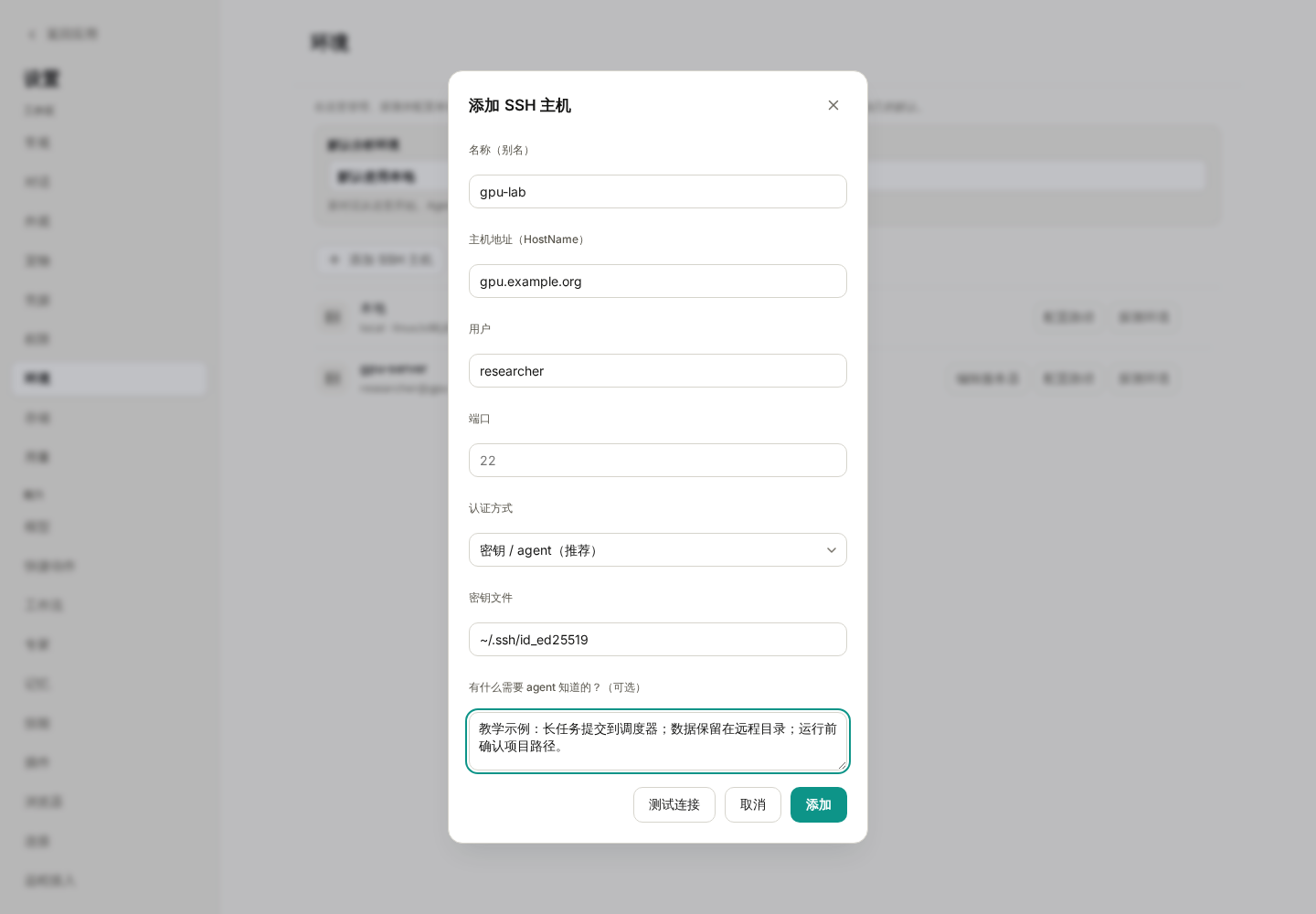
图 1:这里的地址与账号都是教学占位值。“给 Agent 的说明”适合记录使用约定,不适合保存密码或密钥。
“给 Agent 的说明”可以写成一段具体规则:
这台服务器用于本项目分析。运行前先确认远程目录;大型原始数据保留在服务器。耗时计算按管理员要求提交到调度器,记录脚本、参数、任务编号和结果路径,不在登录节点长时间计算。
点击 测试连接,确认成功后添加。回到环境列表,再使用 探测环境 检查操作系统、Python、R、GPU 和调度器等信息。
“能登录”和“分析环境已准备好”是两项检查。测试连接通过后,如果探测不到 Python 或 R,先确认解释器是否安装、是否在远程 PATH 中。需要指定位置时,使用 配置运行时解释器 填写远端可执行文件路径。
已经维护 ~/.ssh/config 时,也可以使用导入入口登记其中的主机,再逐台测试与探测。密钥文件内容不会被复制进 Wisp 的 SQLite;密码类敏感值走系统密钥环。
把环境加入当前会话,再说明数据在哪里。
回到对话,打开输入框左下角 Agent 选项 → 计算环境,将目标服务器加入当前会话。右侧 环境 面板也提供附加服务器的入口。
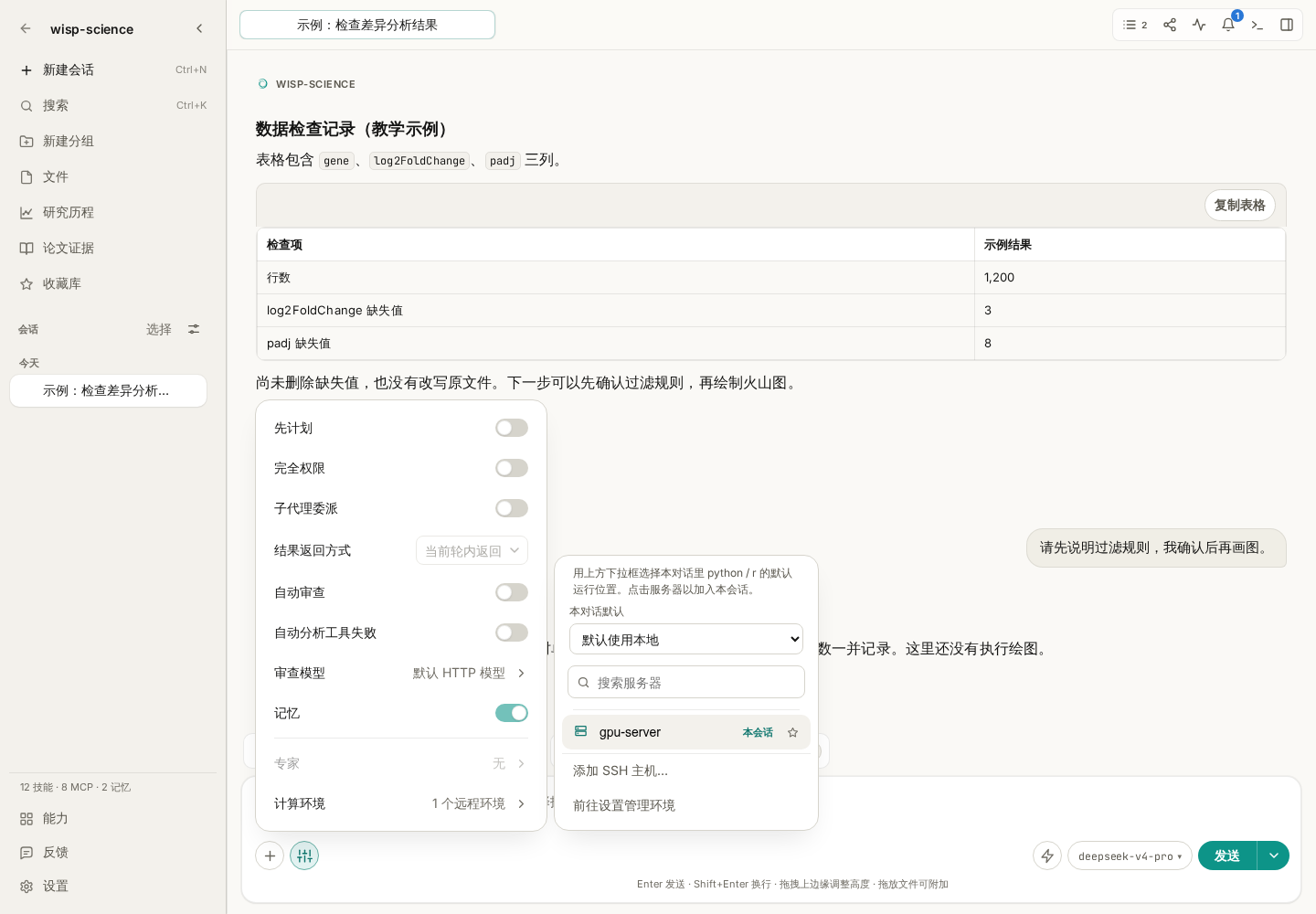
图 2:示例中的 gpu-server 是预置演示主机。服务器是否加入本会话,与它是否被选作默认分析环境,是两个需要分别检查的状态。
默认环境有两层:
- 设置 → 环境 中的全局默认,为新对话提供起点。
- 当前对话的 计算环境 菜单,可以单独指定这段对话的默认环境。
修改全局默认不会改写已经创建的对话。刚开始使用时,在任务里明确写出服务器名称和远程路径,比仅依赖默认值更容易核对:
请在已附加的 gpu-lab 上检查 /data/project-a/counts.csv 是否存在,报告文件大小和前五行。先告诉我实际使用的执行环境,不下载完整文件,也不修改它。
这里的 /data/project-a/counts.csv 是远程路径。本机项目中的 data/counts.csv 不会因为附加了服务器就自动变成同一个文件。需要传输时,明确源机器、源路径和目标位置;大数据也可以一直保留在远端,只取回小型结果或元数据。
想亲自检查目录,可以打开交互终端。
打开右侧 环境 面板,在目标环境卡片上点击 打开终端。终端会显示在会话下方,标签上可以看到它对应的环境。
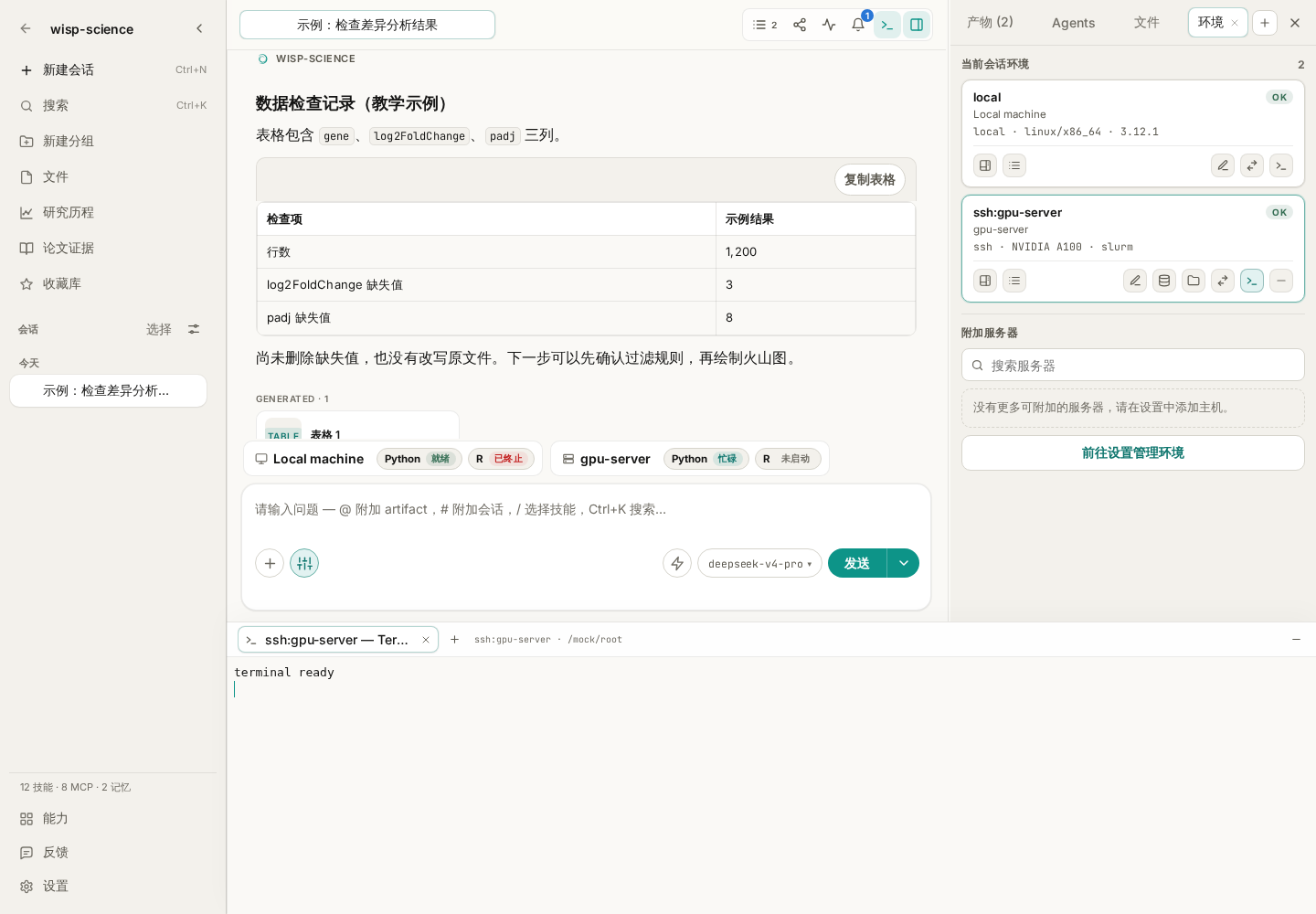
图 3:终端与对话保留在同一个窗口中。这里的“terminal ready”来自测试替身,用于展示位置,不代表真实 SSH 登录结果。
在 Linux/macOS 或远程 Linux shell 中,可以先执行只读检查:
hostname
pwd
ls -lh
它们分别帮助确认机器名称、当前目录和目录内容。SSH 终端初始位置通常是远程用户的主目录,不是本机项目目录;需要分析项目文件时,先进入对应的远程目录。
Windows 本地终端默认使用 PowerShell,可以用:
hostname
Get-Location
Get-ChildItem
一个环境可以打开多个终端标签。切换标签或折叠终端面板,会保留运行中的终端;关闭某个标签会终止对应终端进程。终端标签和滚动记录不会随应用重启恢复,也不作为项目同步内容保存。
耗时计算,要留下可以继续检查的任务记录。
交互终端适合调试,但一项需要跑几小时的分析,还需要状态、取消入口、日志和产物位置。可以让 Wisp 使用结构化 Run 管理任务,而不是在普通 shell 调用里一直等待:
请先检查 gpu-lab 上的运行环境,并为 analysis/run_qc.py 准备运行方案。列出输入路径、输出目录和资源要求,等我确认后,通过结构化 Run 提交;如果这台机器要求使用调度器,请遵守它的提交方式,并记录任务编号。
只有环境和任务方式都匹配时再提交。登记了一台 GPU 主机,并不意味着每个脚本会自动使用 GPU;附加服务器也不会自动把任意命令转换成调度器作业。
需要复盘时,结合 Run 状态、日志、输出文件和轨迹判断结果。仅有终端中的“命令已发送”不能证明计算成功结束。
遇到问题,先确认机器,再确认命令。
| 现象 | 优先检查 |
|---|---|
| SSH 连接失败 | 地址、端口、账号、VPN/跳板机与认证方式 |
| 系统终端能登录,Wisp 探测失败 | 远程登录脚本、受限 shell,以及非交互命令能否执行 |
| 已添加服务器,对话用的还是本机 | 是否加入当前会话、当前会话的默认环境与任务指定是否一致 |
| 文件不存在 | 路径属于本机还是远程;终端当前目录是否正确 |
| Python/R 找不到包 | 实际调用的是哪个解释器,包是否装在同一环境 |
第一次练习可以只完成四件事:测试连接、探测环境、把服务器加入对话、检查一个小文件。确认每一步都能说清“在哪台机器、读哪个路径、得到什么结果”,再开始真正的计算任务。
功能细节参见 Wisp 基础配置和交互终端说明。本文依据撰写时的项目实现整理,不同版本的界面文字可能略有差异;示例命令和提示词不代表已经执行的远程操作。
Research files and computation often live on different machines: a laptop for reading papers, a lab server for data, and a remote Python, R, or GPU environment for analysis. It is easy to lose track of which machine you are using and which filesystem a path belongs to.
Wisp Science registers servers, attaches execution environments to conversations, and opens interactive terminals for commands you run yourself. This tutorial starts with an SSH host, then covers selecting a conversation's environment and using the terminal inside the app.
Screenshots show the real frontend in English with simulated server, GPU, and terminal information.
gpu.example.orgis a placeholder, not a server to connect to. The images do not demonstrate a real SSH connection.
Distinguish two ways of working.
| Entry point | Who operates it | Suitable tasks |
|---|---|---|
| A conversation's execution environment | You describe the task; Wisp calls tools in the selected environment | Read remote data, run analyses, and submit structured tasks |
| Wisp's interactive terminal | You enter commands and the shell executes them | Inspect directories, debug environments, and monitor output |
Server configuration identifies which machine Wisp may use. An interactive terminal lets you type commands yourself. For using the Wisp agent directly from a system terminal, see Wisp CLI.
Prepare connection details.
Ask the administrator for the hostname, account, SSH port, and authentication method. Set up any required VPN, jump host, or SSH configuration according to your laboratory's instructions.
| Detail | Example | Meaning |
|---|---|---|
| Name / alias | gpu-lab |
How the server appears in Wisp |
| Hostname | gpu.example.org |
Replace with the actual address |
| User | researcher |
The remote account, which may differ from your local username |
| Port | 22 |
Use the server's configured port |
| Identity file | ~/.ssh/id_ed25519 |
A local private-key path; do not paste the private key contents |
An existing working ssh login in your system terminal makes these fields easier to verify. When a host-key prompt first appears, compare its fingerprint with the administrator's information. Disabling host verification should not be your routine setup procedure.
Register the server as an environment.
Open Settings → Environments → Add SSH host and enter the details. Select key/agent or password authentication according to the server's requirements.
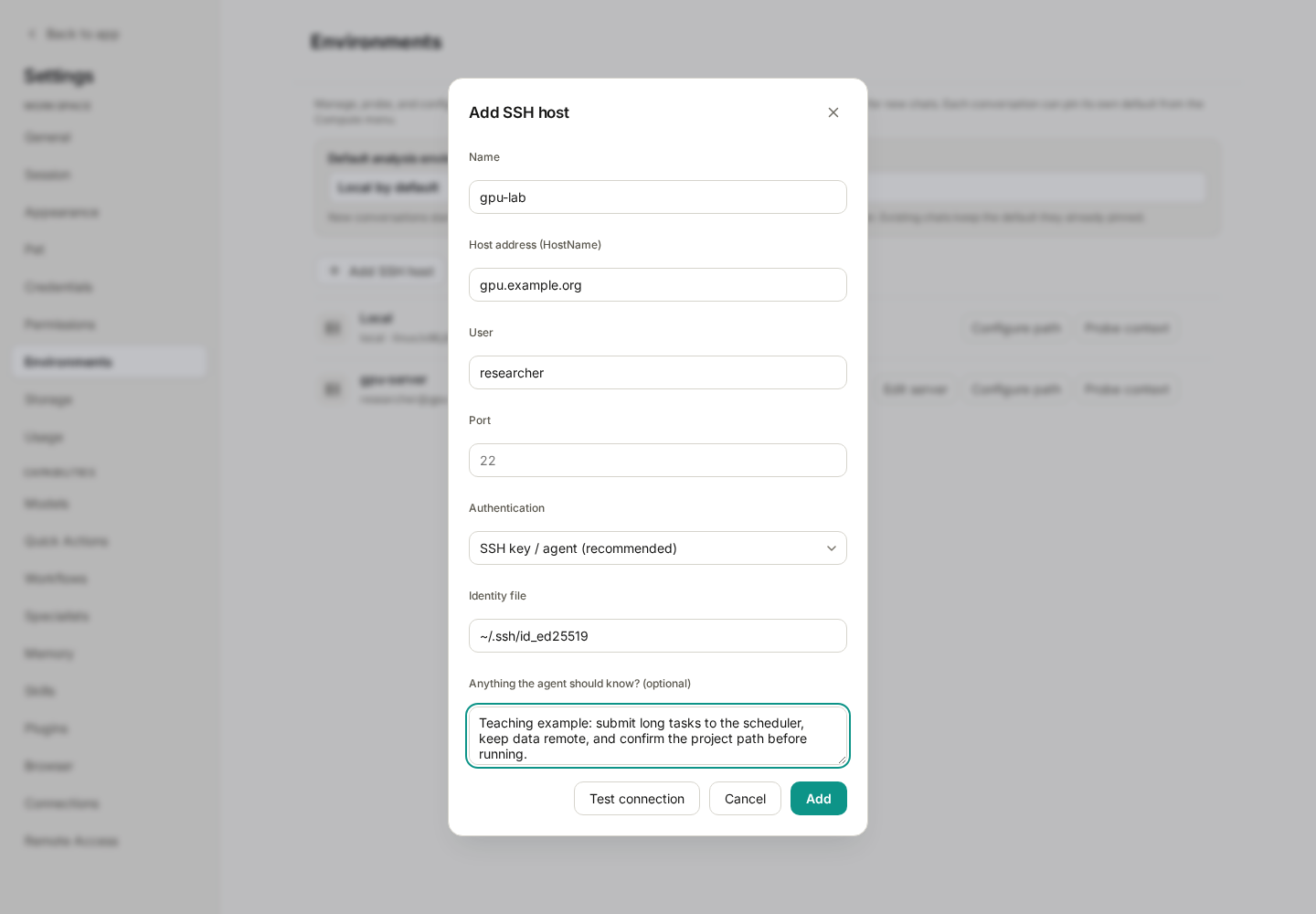
Figure 1: Hostnames and accounts are teaching placeholders. Agent notes should describe usage rules, not contain passwords or keys.
Useful agent notes might say:
This server is for the current project's analysis. Verify the remote working directory before running anything. Keep large raw data on the server. Submit lengthy computation through the required scheduler, record scripts, parameters, job IDs, and output paths, and do not run long computations on the login node.
Click Test connection and add the host after success. Back in the environment list, use Probe context to inspect operating system, Python, R, GPU, and scheduler information.
Being able to log in and having a usable analysis environment are separate checks. If the connection succeeds but Python or R is missing from the probe, check installation and the remote PATH. Use Configure runtime interpreters to specify a remote executable path where necessary.
If you already maintain ~/.ssh/config, import its hosts and test and probe them individually. Private-key contents are not copied into Wisp's SQLite database; sensitive password values use the operating system keyring.
Attach the environment to the conversation and specify the data path.
Return to the conversation and open Agent options → Compute near the lower-left of the composer. Add the server to the current session. The right-side Environment panel also offers an attach-server entry point.
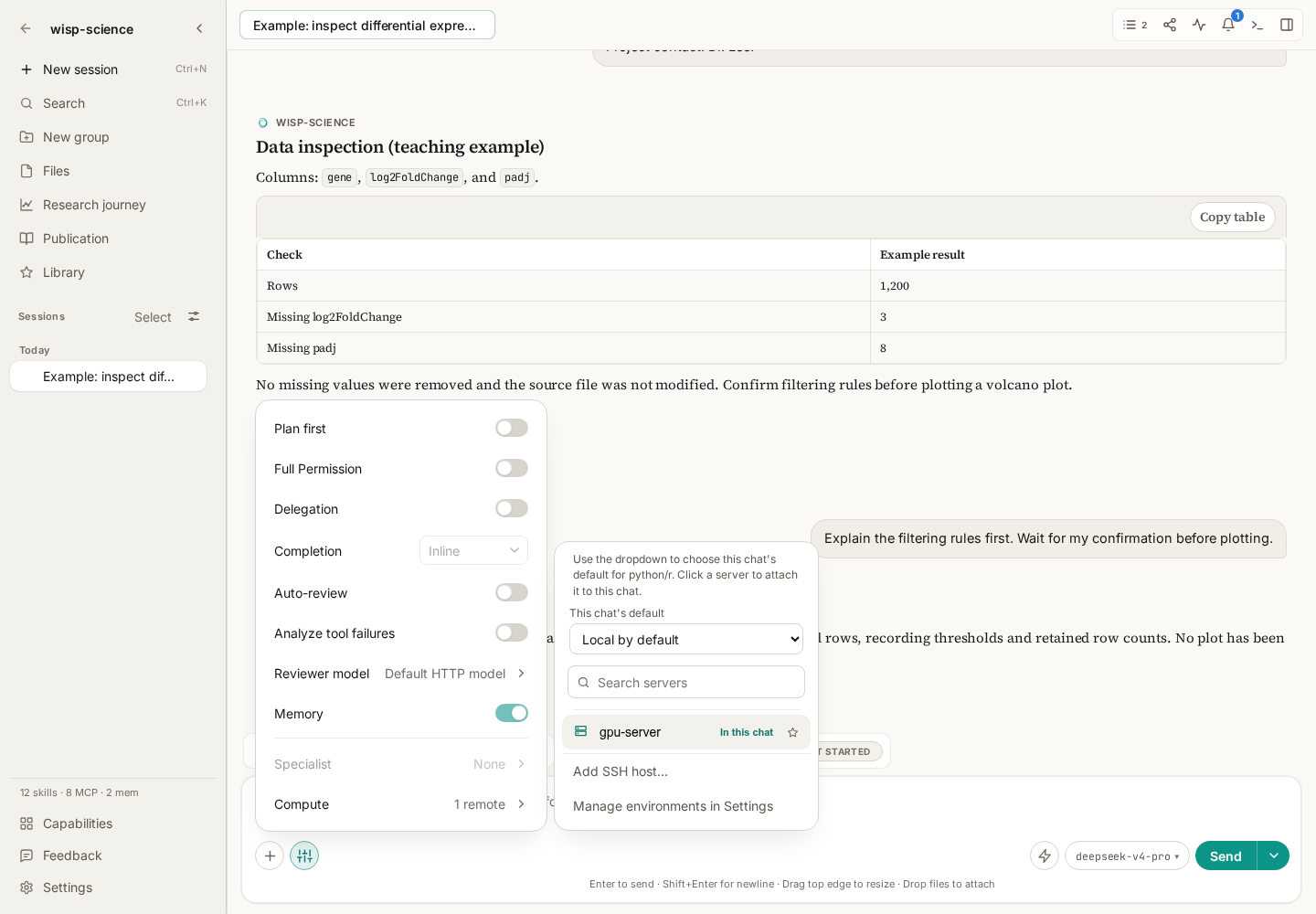
Figure 2: gpu-server is a preconfigured demonstration host. Whether a server is attached and whether it is the default analysis environment are separate states.
Defaults have two levels:
- The global default in Settings → Environments provides a starting point for new conversations.
- The current conversation's Compute menu can set its own default environment.
Changing the global default does not rewrite existing conversations. At first, naming the server and remote path explicitly makes the action easier to verify:
On the attached gpu-lab server, check whether /data/project-a/counts.csv exists. Report its size and first five lines. Identify the execution environment actually used. Do not download the full file or modify it.
/data/project-a/counts.csv is a remote path. Attaching a server does not make it the same file as local data/counts.csv. For transfers, specify source machine, source path, and destination. Large datasets can remain remote while you retrieve small results or metadata.
Open an interactive terminal for manual inspection.
In the right-side Environment panel, click Open terminal on the environment's card. The terminal appears below the conversation, with its environment identified in the tab.
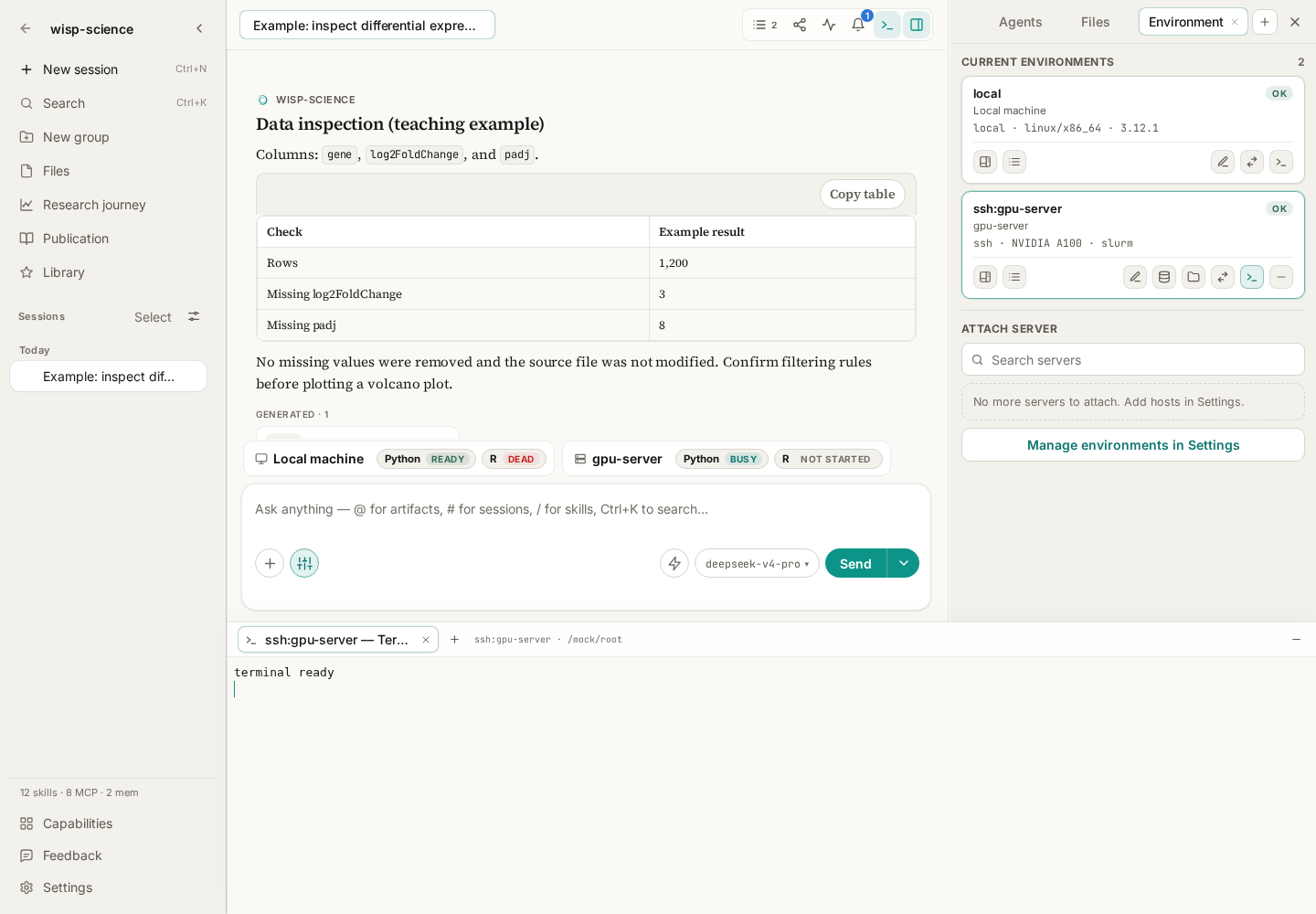
Figure 3: The conversation and terminal remain in one window. “terminal ready” is mock output that demonstrates the layout, not a real SSH login result.
For a Linux/macOS shell or a remote Linux shell, start with read-only checks:
hostname
pwd
ls -lh
These identify the machine, current directory, and directory contents. An SSH terminal normally starts in the remote user's home directory, not the local project directory. Change to the appropriate remote project directory before using its files.
The local terminal on Windows uses PowerShell by default:
hostname
Get-Location
Get-ChildItem
You can open several terminals for one environment. Switching tabs or collapsing the dock keeps them running. Closing a terminal tab terminates its process. Tabs and scrollback do not survive an app restart and are not included in project sync.
Keep durable records for long computations.
An interactive terminal is useful for debugging. An analysis running for hours also needs status, cancellation, logs, and output locations. Ask Wisp to use a structured Run instead of waiting indefinitely inside an ordinary shell call:
Check the environment on gpu-lab and prepare a plan for analysis/run_qc.py. List input paths, output directory, and resource requirements. Wait for my confirmation before submitting through a structured Run. If this machine requires a scheduler, use its required submission method and record the job ID.
Submit only when the environment and execution method match the task. Registering a GPU host does not automatically make every script use a GPU, and attaching a server does not convert arbitrary commands into scheduler jobs.
Review Run status, logs, files, and the trajectory together. A terminal reporting that a command was sent does not prove the computation succeeded.
Check the machine before the command.
| Symptom | Check first |
|---|---|
| SSH connection fails | Hostname, port, account, VPN/jump host, and authentication |
| System SSH login works but Wisp's probe fails | Login startup scripts, restricted shells, and whether non-interactive commands execute |
| Wisp still uses the local machine | Session attachment, conversation default, and the task's explicit environment |
| File not found | Whether the path is local or remote and the terminal's current directory |
| Python/R package missing | Which interpreter is actually running and whether the package is installed there |
For a first exercise, test the connection, probe the environment, attach the server, and inspect one small file. Before starting real computation, make sure you can identify the machine, path, and result at every step.
See Basic Configuration and Interactive Terminals. This tutorial reflects the implementation when written; labels may vary by version. Example commands and prompts do not represent completed remote operations.