
Wisp Science基础入门:浏览器使用
查看原文查文献时,数据库记录往往只是起点。我们还需要打开期刊网页,看看补充材料放在哪里,确认数据下载入口,或者阅读一个没有专用检索工具的网站。
Wisp Science 可以通过浏览器桥接扩展读取和操作网页。你可以让它在已有浏览器页面上继续工作,查看它实际打开了什么,再把需要的内容整理进项目。这篇文章先完成一次公开网页读取,再介绍标签管理、人工验证和下载。
本文的 Wisp 配图来自实际前端,使用教学会话和模拟浏览器事件;扩展安装图展示 Chrome 的操作入口。图中的网页标题与任务状态用于说明界面,不代表已经执行了联网检索。
先认识浏览器控制:模型的回答,需要有实际页面作为依据。
浏览器控制可以帮助 Wisp 打开网页、读取页面文字、查找可操作元素,以及在任务需要时截图或保存网页资源。对于有专门连接器的数据库,也可以使用 MCP 取得结构化记录;两种方式可以用于同一个科研任务。
日常使用时,Wisp 默认连接你已有的 Chrome/Chromium 类浏览器资料,因此可以沿用该资料中的登录状态。登录了哪个账号、当前打开了哪些标签,会影响可读取的内容。
Wisp 也有单独的工作浏览器模式,使用独立资料,需要在其中另行登录,并且依赖支持该启动方式的浏览器版本。第一次使用,先把日常浏览器的连接跑通即可;独立模式的区别见浏览器运行时说明。
第一次连接,从“配置浏览器控制”开始。
先保持 Wisp 运行,在会话中发送:
请帮我配置浏览器控制,告诉我当前连接状态和这台电脑上应该加载的扩展目录。
Wisp 会通过 browser_setup 返回状态和准确路径。接着在准备交给 Wisp 使用的 Chrome 资料中操作:
- 打开
chrome://extensions。 - 开启右上角 开发者模式。
- 点击 加载已解压的扩展程序;不同版本也可能显示“加载未打包的扩展程序”。
- 选择 Wisp 返回的整个
browser-extension文件夹。 - 打开扩展弹窗,确认出现 Connected to Wisp。

图 1:加载的是整个扩展目录,不是 ZIP,也不是目录中的某个文件。路径以自己电脑上的 Wisp 返回值为准。
不要照抄别人的 Windows、macOS 或 WSL 路径。Wisp 会准备稳定的受管目录,浏览器需要记住的就是这个实际路径。
如果扩展弹窗显示已连接,但 Wisp 仍报告不可用,再次要求它检查浏览器状态。可能存在旧扩展版本、连接到了其他占用相同端口的工具,或握手未完成等情况,应该依据返回的具体原因处理。
先读一个公开页面,确认回答来自实际访问。
可以发送下面这条任务:
请打开 https://example.com ,读取网页标题和主要段落。告诉我实际读取的网址;如果没有成功读取,请说明失败原因,不要用已有知识补写网页内容。
这个页面内容简单,适合检查基本连接。确认能打开和读取后,再换成你熟悉的期刊或数据库页面。
科研任务可以进一步写清楚“看什么、取什么、存在哪里”:
请阅读我当前打开的论文页面,找出数据可用性声明和补充材料入口。列出页面上实际出现的数据编号、链接和对应说明,保存为 notes/paper-links.md。暂时不要下载大型数据,也不要提交任何表单。
检查结果时,把 Wisp 的回答与浏览器页面对照。需要追查执行过程时,打开轨迹,查看调用了什么工具、读取了哪个地址,以及有没有失败后重试。
浏览器设置里,有两类与日常使用直接相关的选项。
进入 设置 → 浏览器,可以管理自动打开浏览器、标签清理和网址名单。
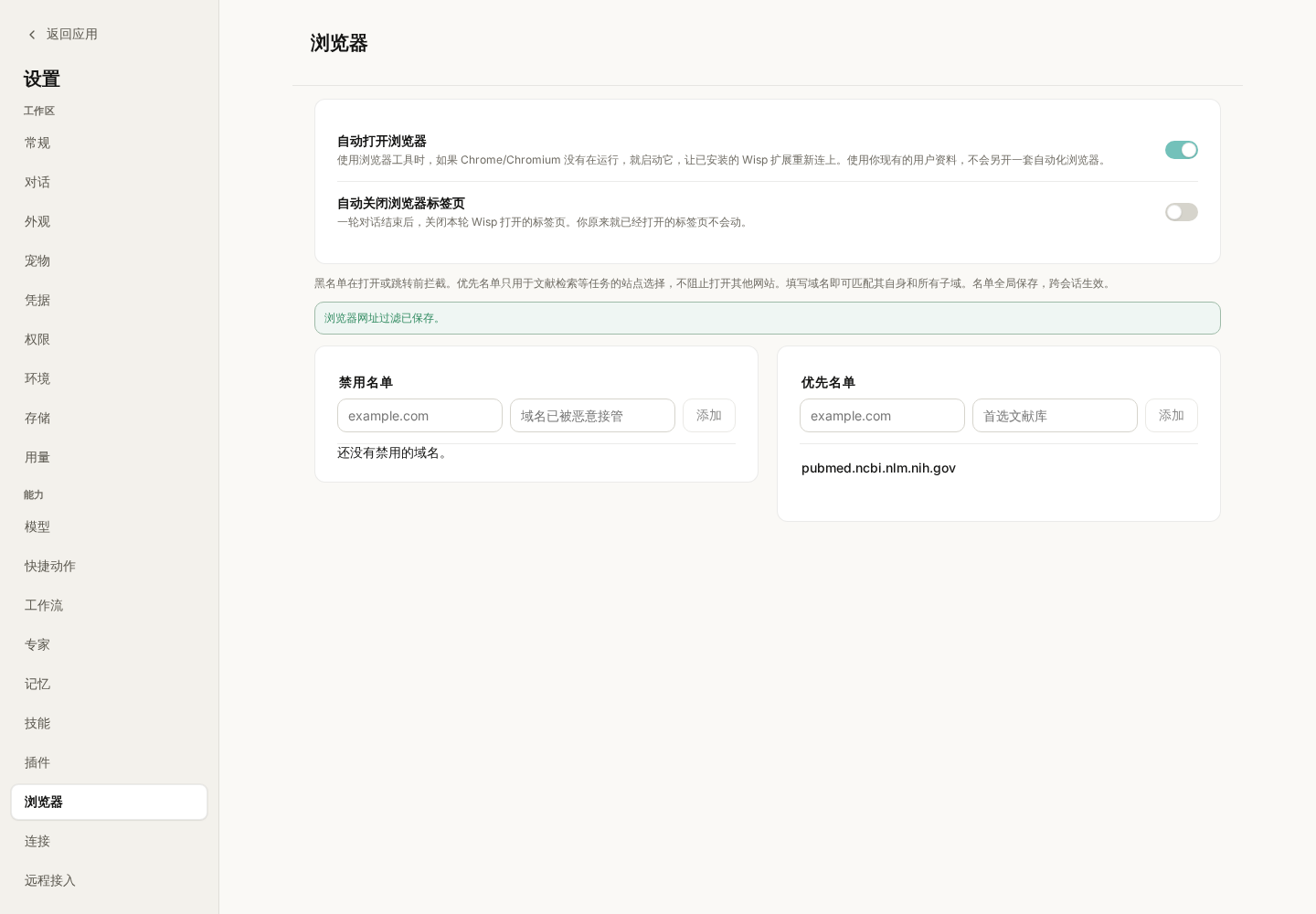
图 2:演示中把 PubMed 加入优先名单。优先名单提供站点偏好,不会把其他网站全部禁止。
| 选项 | 有什么作用 |
|---|---|
| 自动打开浏览器 | 需要使用浏览器工具时,尝试启动已安装的受支持浏览器,让扩展重新连接;默认开启 |
| 自动关闭浏览器标签页 | 一轮结束后清理本轮 Wisp 新开的标签;默认关闭 |
| 禁用名单 | 对命中的域名及其子域,阻止相应的新开页面或明确跳转,并返回填写的原因 |
| 优先名单 | 指导检索优先使用这些站点,名单外站点仍可访问 |
名单按域名设置,不能代替检查具体网页内容。禁用一个域名也不等于清除了浏览器里已经打开的页面;已打开标签仍可能被扫描读取。
一轮结束后,决定哪些标签值得留下。
未开启自动关闭时,Wisp 会列出本轮自己打开的标签,让你选择关闭哪些、保留哪些。已经由你打开的标签不在这次清理范围中。
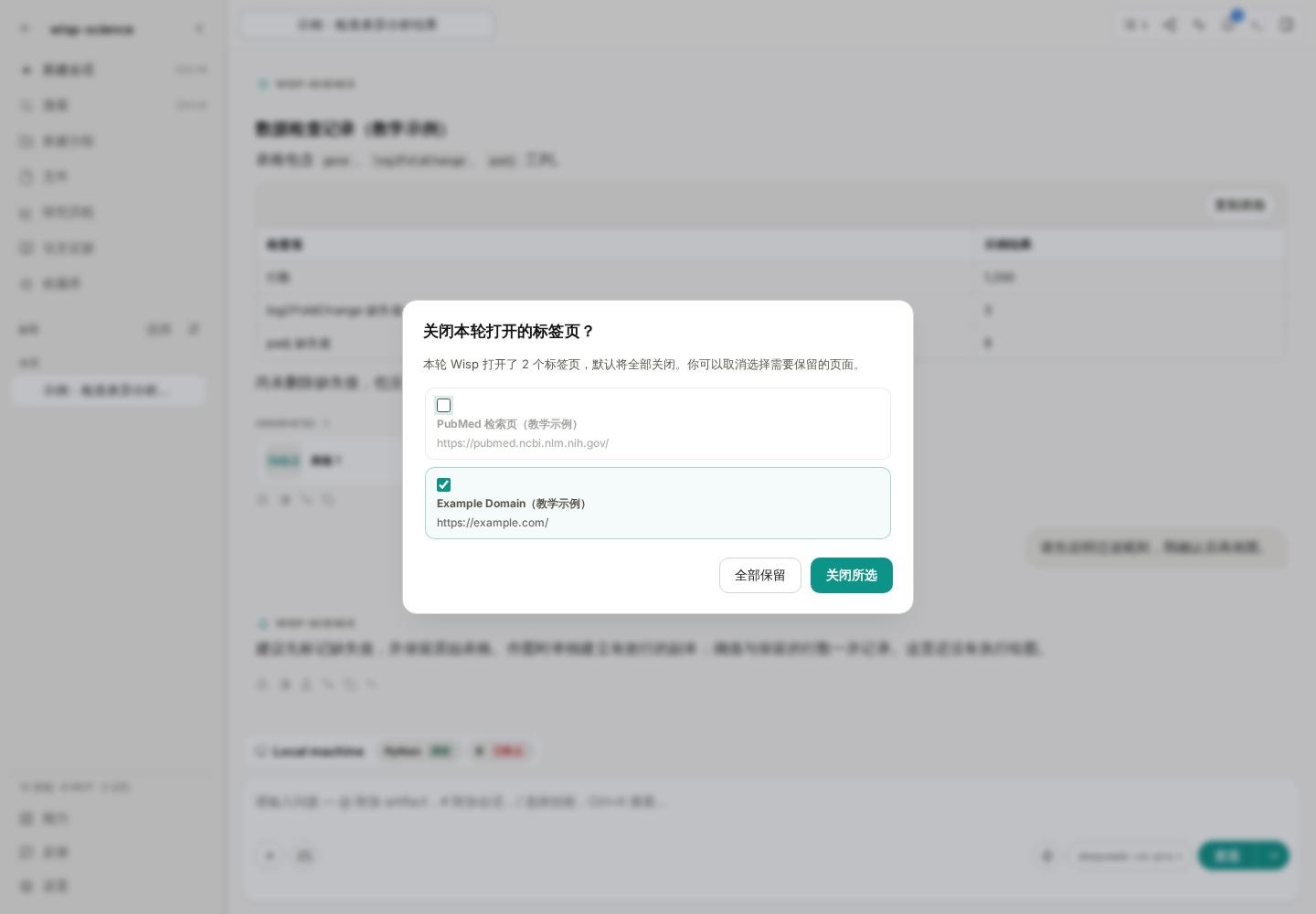
图 3:示例中取消勾选 PubMed 页面,表示希望保留它继续查看。勾选的标签才会被这次确认关闭。
可以保留还要核对的论文页面,把临时检索页清理掉。按 Escape 可以先关闭提示,不必为了返回会话而把页面一起关掉。
如果一轮结束时扩展断开,待处理的标签列表会保留,重新连接后再处理。需要人工验证的标签会受到保护,不会被当作普通任务标签自动清理。
遇到登录或真人验证,回到浏览器亲自完成。
某些网站需要登录,或者会显示“确认你是真人”。Wisp 检测到人工验证时,会暂停相应自动化并提示你处理。
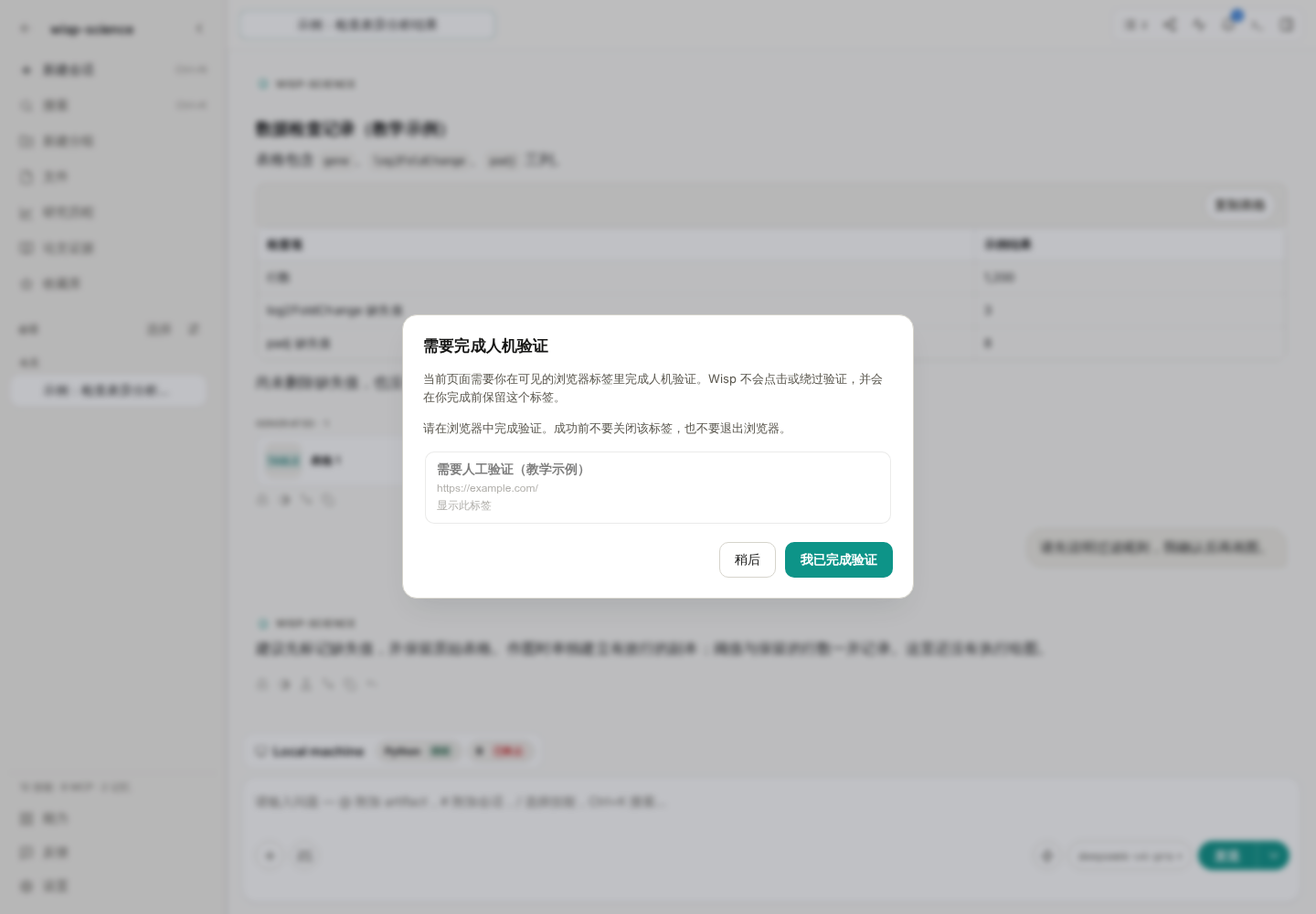
图 4:这张图使用模拟事件展示提醒。验证需要你在实际网页中完成;Wisp 会重新检查页面状态后再继续。
处理顺序是:打开提示指向的标签,手动完成验证,保持页面打开,再回到 Wisp 确认。若验证还没通过,先查看浏览器页面,不要反复要求 Agent 点击验证码。
下载材料时,把网页操作和文件保存位置说清楚。
可以先让 Wisp 列出文件名称、链接和大小,再决定是否下载。例如:
请先找出这篇论文的补充表格,列出文件名、下载链接和页面标注的大小。先不下载,等我确认需要哪些文件。
如果浏览器弹出系统“另存为”窗口,需要你处理。网页桥接不能操作系统文件选择器,也不能代替你点击浏览器工具栏中的下载气泡。
确实需要无人值守下载时,可以手动调整浏览器的下载设置,关闭“下载前询问每个文件的保存位置”。多文件自动下载的权限应按具体站点设置。下载完成后,再让 Wisp 检查实际落盘的文件位置与大小;不要把“点击了下载链接”当作“已经取得完整文件”。
遇到问题,可以按连接、页面和文件三个位置检查。
| 现象 | 优先检查 |
|---|---|
| 提示浏览器未连接 | Wisp 是否运行、是否打开了安装扩展的那份浏览器资料 |
| 升级 Wisp 后要求更新扩展 | 按更新横幅刷新扩展;旧版本可能需要在扩展管理页手动重新加载 |
| 浏览器已连接,却读不到内容 | 页面是否加载完成、是否需要登录或人工验证 |
| 无法操作浏览器设置页 | chrome://settings 等内部页面需要手动操作 |
| 下载没有结束 | 是否停在系统保存窗口、站点下载许可或失败的网络请求 |
| 回答没有来源网址 | 查看轨迹,确认是否发生了成功的页面读取,再要求按实际结果补充来源 |
第一次练习,完成“读一个公开页面、核对网址、保留需要的标签”就够了。熟悉连接和检查方式后,再把论文、数据入口和补充材料逐步放进同一条任务中。
功能细节参见 Wisp 真实浏览器自动化文档。本文依据撰写时的项目实现整理,不同版本的界面文字可能略有差异;示例提示词不代表已经执行的网页操作。
Database records are often only the beginning of literature research. You may need to open a journal page, locate supplementary materials, confirm a data download link, or read a site without a dedicated search tool.
Wisp Science reads and operates webpages through a browser bridge extension. It can continue work in your browser, show what it actually opened, and organize useful information in the project. This tutorial starts with a public page, then covers tabs, human verification, and downloads.
Wisp screenshots use the real frontend with a teaching conversation and simulated browser events. They show the English interface. The extension screenshot illustrates Chrome's installation controls. Page titles and task states are examples, not evidence of completed live retrieval.
Ground the answer in an actual page.
Browser tools can open pages, read text, locate actionable elements, and capture screenshots or save webpage assets when required. For databases with dedicated connectors, MCP can retrieve structured records. Both approaches can serve the same task.
By default, Wisp connects to an existing Chrome/Chromium-family profile and can use that profile's login state. The signed-in account and open tabs affect what can be read.
A separate workspace-browser mode uses its own profile, requires signing in there, and depends on a compatible browser build. For a first attempt, connect your everyday browser. See Browser Runtime for the distinction.
Start by asking Wisp to configure browser control.
Keep Wisp running and send:
Help me configure browser control. Report the current connection status and the exact extension directory I should load on this computer.
Wisp uses browser_setup to report status and the correct path. In the Chrome profile you want Wisp to use:
- Open
chrome://extensions. - Enable Developer mode at the top right.
- Click Load unpacked; wording can vary by browser version.
- Select the entire
browser-extensiondirectory reported by Wisp. - Open the extension popup and check for Connected to Wisp.

Figure 1: The English Chromium extension manager. Load the whole extension directory, not a ZIP or an individual file inside it. Use the exact path reported on your computer.
Do not copy another person's Windows, macOS, or WSL path. Wisp prepares a stable managed directory; that is the path the browser should remember.
If the popup says connected but Wisp still reports an unusable connection, ask it to check again. An old extension, another tool occupying the same port, or an incomplete handshake may be involved. Follow the reported cause.
Read a public page first.
Try:
Open https://example.com and read the page title and main paragraphs. Report the URL actually read. If reading fails, explain the failure instead of reconstructing the page from prior knowledge.
The page is simple enough to check the basic connection. Once it opens and reads successfully, try a familiar journal or database page.
For a research task, specify what to inspect, what to collect, and where to save it:
Read the paper page I currently have open. Find the data availability statement and supplementary-material links. List identifiers, links, and descriptions actually present on the page and save them to notes/paper-links.md. Do not download large datasets or submit forms yet.
Compare the answer with the visible browser page. Use the trajectory to check tools, addresses, failures, and retries.
Review browser settings for daily use.
Open Settings → Browser for automatic launching, tab cleanup, and domain lists.
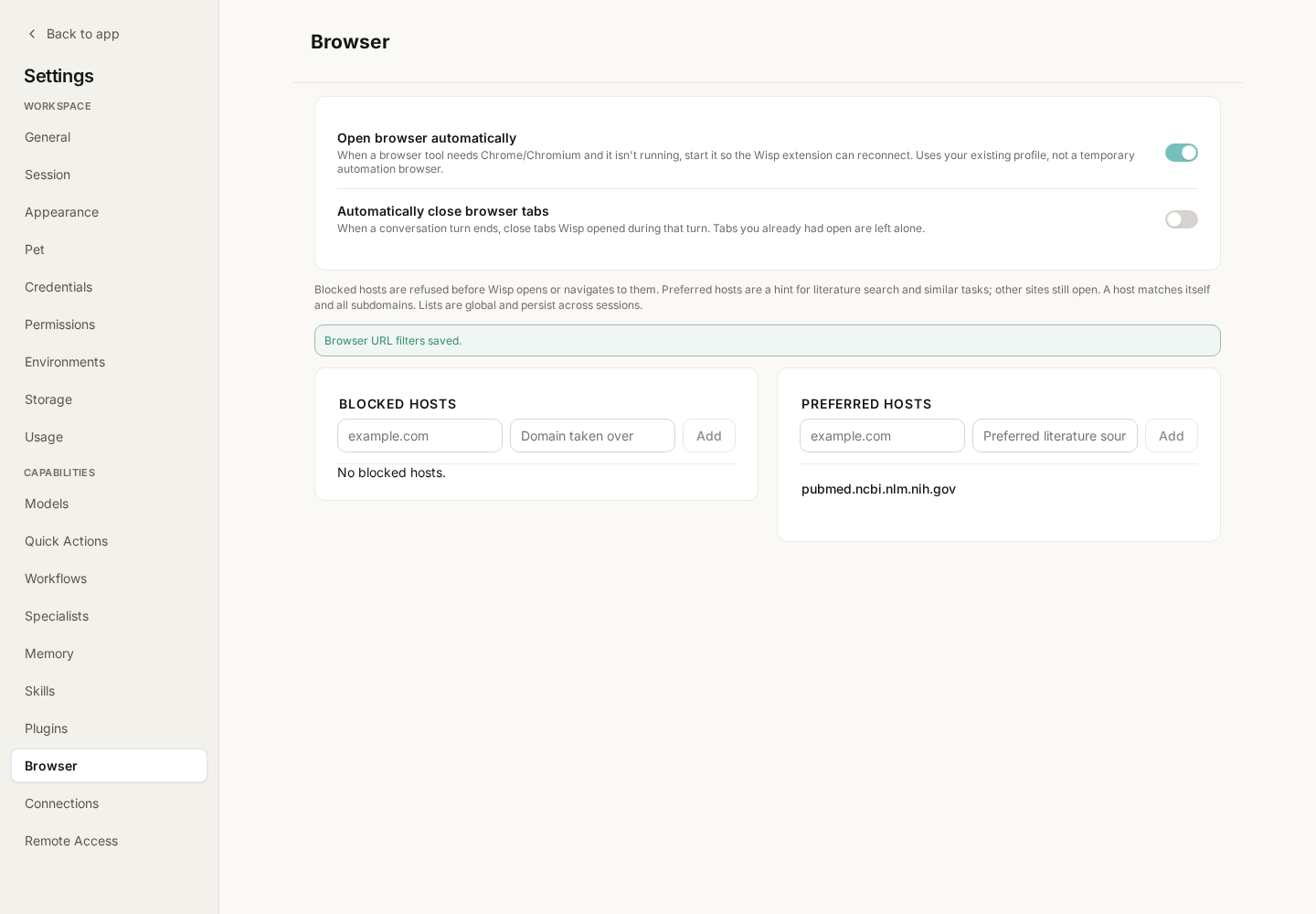
Figure 2: PubMed is added to the preferred list in this example. A preference does not block all other websites.
| Option | Effect |
|---|---|
| Open browser automatically | When browser tools need a session, try to start an installed supported browser so its extension can reconnect; enabled by default |
| Automatically close browser tabs | Clean up tabs Wisp opened during the turn when that turn ends; disabled by default |
| Blocked domains | Reject applicable new-page opens or explicit navigation to a matching domain or subdomain, returning your reason |
| Preferred domains | Guide retrieval toward these sites without forbidding other domains |
These are domain-level settings, not a substitute for checking page content. Blocking a domain does not remove tabs that are already open; existing tabs can still be scanned.
Decide which tabs to keep after a turn.
When automatic closing is off, Wisp lists tabs it opened during the turn. Choose which to close and which to keep. Tabs you already had open are outside this cleanup scope.
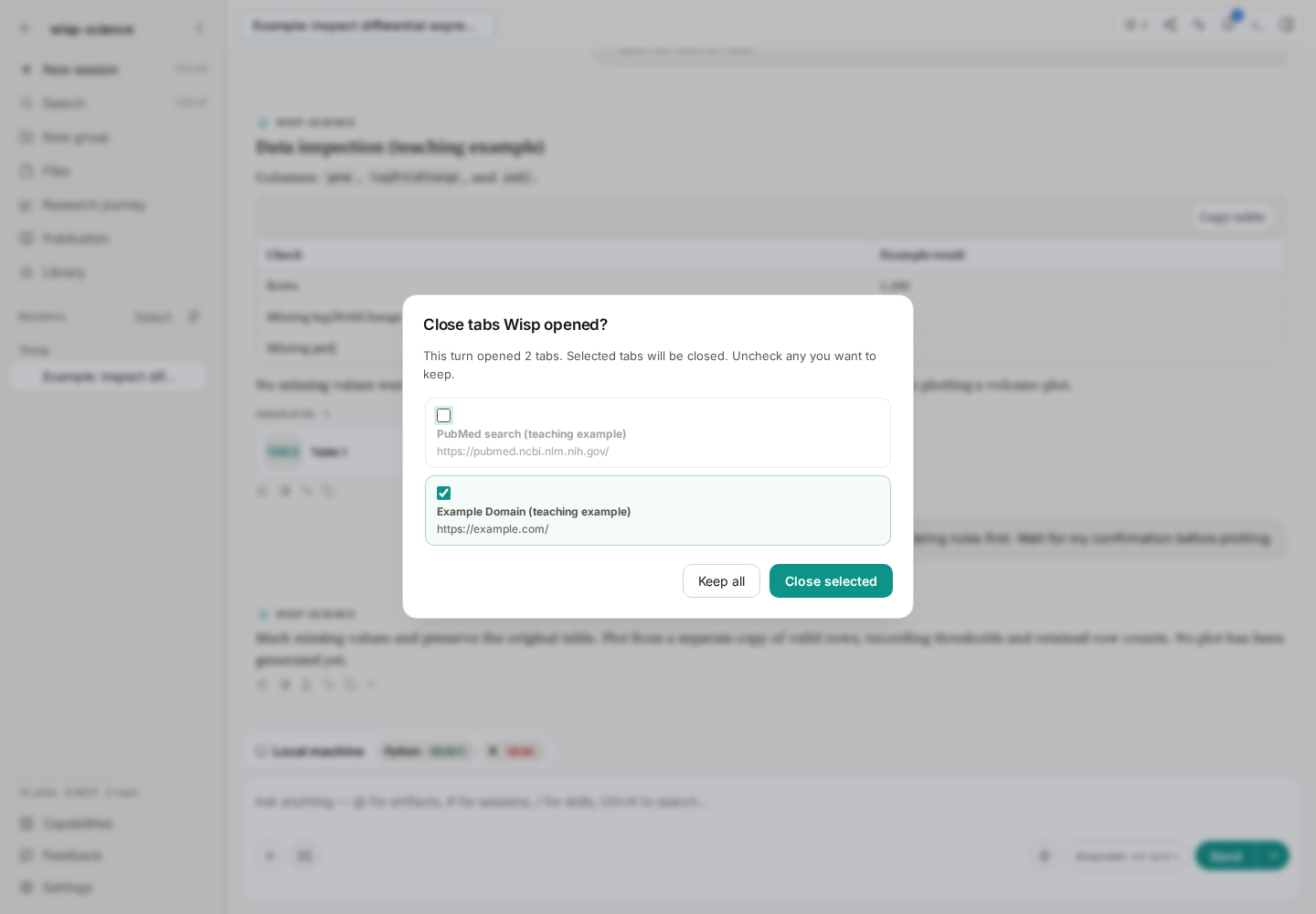
Figure 3: The PubMed page is deselected to keep it for further reading. Only selected tabs will be closed by this confirmation.
Keep paper pages you still need to verify and close temporary searches. Escape dismisses the prompt without requiring you to close the pages to return to the conversation.
If the extension is disconnected at turn end, the pending list is retained for reconnection. Tabs awaiting human verification are protected from ordinary automatic cleanup.
Complete login or human verification in the browser yourself.
Some sites require login or confirmation that you are human. When Wisp detects a verification challenge, it pauses the relevant automation and asks you to take over.
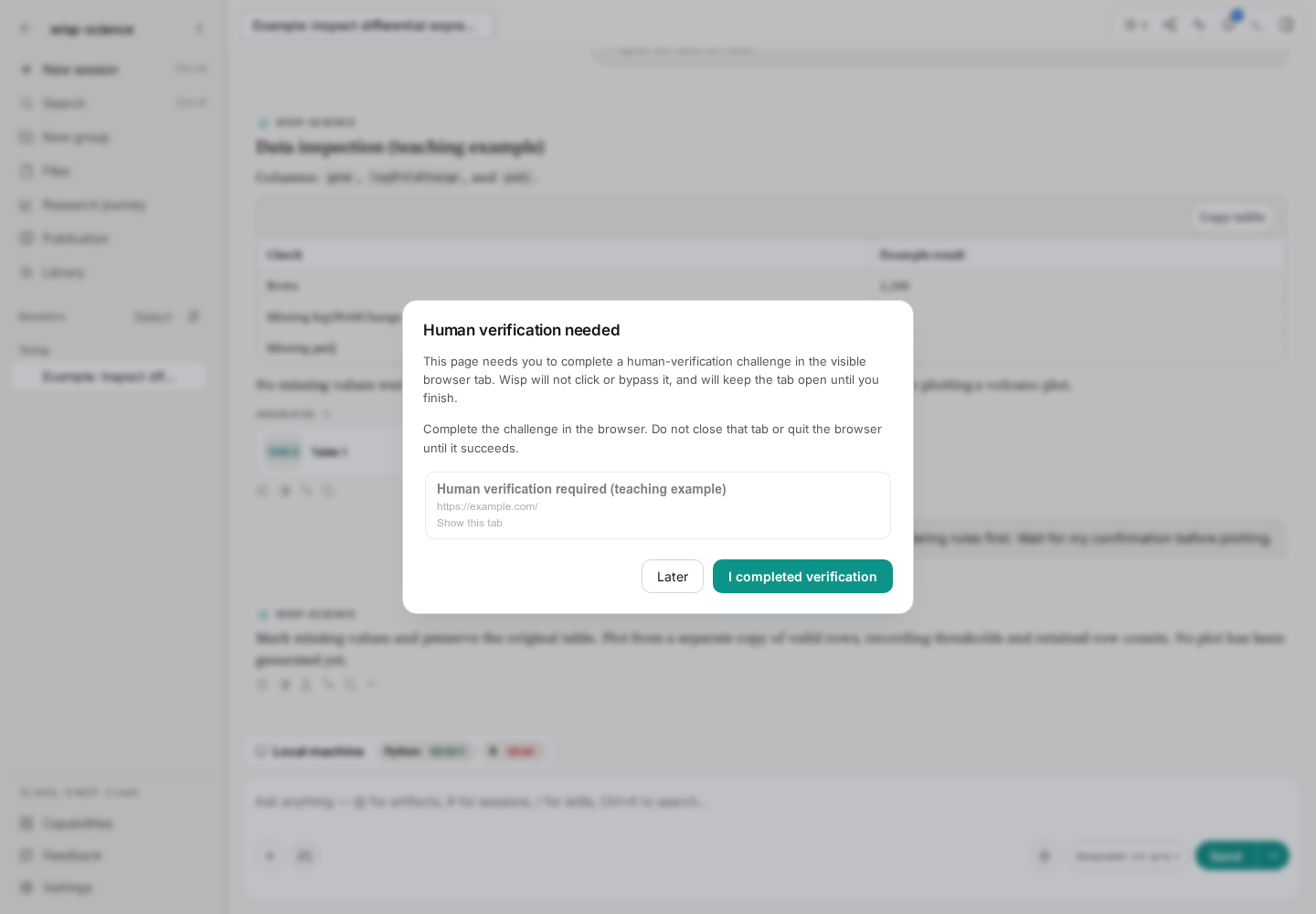
Figure 4: A simulated event demonstrates this prompt. Complete verification on the actual webpage; Wisp rechecks the page before continuing.
Open the indicated tab, complete verification manually, leave it open, and confirm in Wisp. If the challenge remains, inspect the page instead of repeatedly asking the agent to click it.
Be explicit about downloads and where files are saved.
First ask for names, links, and sizes, then decide what to download:
Find the supplementary tables for this paper and list their filenames, download links, and sizes shown on the page. Do not download anything until I confirm which files I need.
If a system Save As dialog appears, handle it yourself. The webpage bridge cannot operate native file pickers or browser-toolbar download bubbles.
For unattended downloads, you can manually turn off the browser option asking where to save every file. Configure permission for multiple automatic downloads per trusted site. Afterward, have Wisp check actual files, locations, and sizes: clicking a download link is not proof that the whole file arrived.
Check connection, page state, and files separately.
| Symptom | Check first |
|---|---|
| Browser disconnected | Is Wisp running, and is this the browser profile with the extension installed? |
| Extension update requested after upgrading Wisp | Follow the update banner; older extensions may require Reload in the extension manager |
| Connected, but content cannot be read | Is the page fully loaded? Does it need login or human verification? |
| Browser settings page cannot be controlled | Internal pages such as chrome://settings require manual interaction |
| Download has not completed | Native save dialog, site download permission, or a failed network request |
| Answer has no source URL | Check the trajectory for successful page reads, then ask for sources based on those results |
A first exercise can simply read a public page, verify its URL, and keep the useful tab. Once that works, combine papers, data entries, and supplementary materials in the same task.
See Real-browser Automation. This tutorial reflects the implementation when written; labels may vary by version. Example prompts do not represent completed browser operations.